
| Product Documentation
Hybrid Control Panel (v10)
Microsoft Azure
Hosting Controller offers provisioning of virtual machines in Microsoft Azure (MS Azure) clouds through its panel. MS Azure lets users tap into the Microsoft cloud for the purpose of creating Windows/Linux virtual machines, the way they need them.
This document is intended to provide detailed information regarding management and configuration of Azure virtual machines using HC Panel interface.
Microsoft Azure Pre-Requisites for HC Panel
Microsoft Azure PowerShell utility (azure-powershell.2.0.1.msi) must be installed on HC Portal/Master machine (The machine from where you access the Panel interface), as it is essential to load the required Azure PowerShell libraries.
Download Link: http://downloads.hostingcontroller.com/misc/utilities/csp/azure-powershell.2.0.1.msi [reboot the machine]
Recommendation Before Starting Using HC CSP services
In evaluation phase we highly recommend to test the HC CSP module using Sandbox account to avoid being charged and once you get familiar then put the live CSP account. You can easily create this account in Microsoft Partner Center > Dashboard > Account Settings > Integration Sandbox
Enable Azure Role
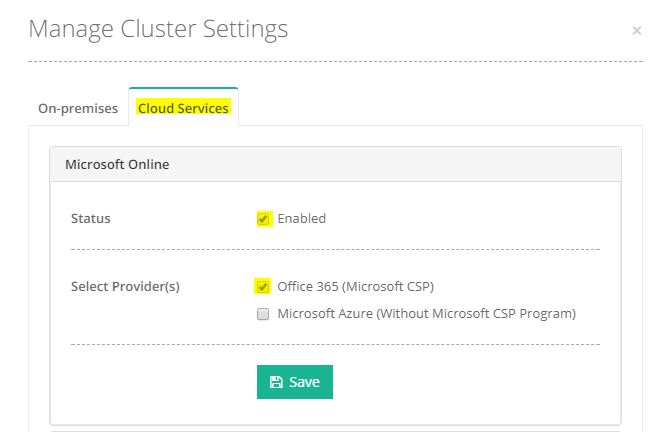
To enable Azure services login in HC Panel as Global Admin, At top right corner of the screen click the configurations icon  and click Cluster Settings. Select tab "Cloud Services" > Select Option Office 365 (Microsoft CSP).
Add Azure Provisioning Node
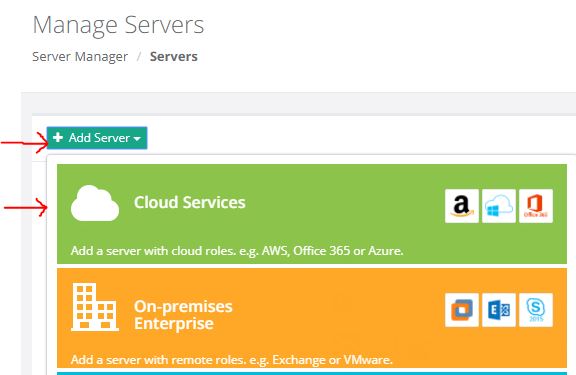
A hypothetical instance will be added in the HC Panel for CSP services provisioning and management. Click on configurations icon > click on Servers > Click Add Server button > Select Cloud Services.
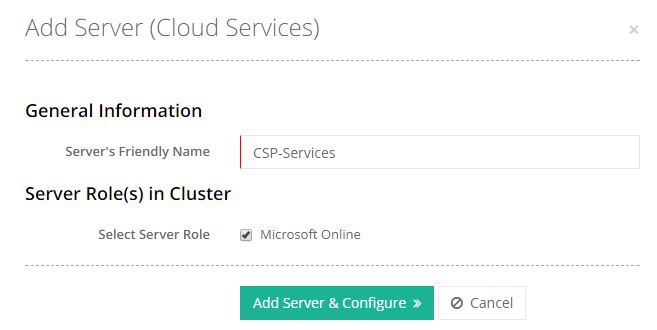
On next screen insert the CSP Node name (Any name you can provide) in " Server's Friendly Name" and select option "Microsoft Online", click Add Server & Configure to proceed further.
Configure CSP Account
Hosting Controller utilizes the CSP API provided by Microsoft, for communication. The API settings are required to be performed by a CSP partner
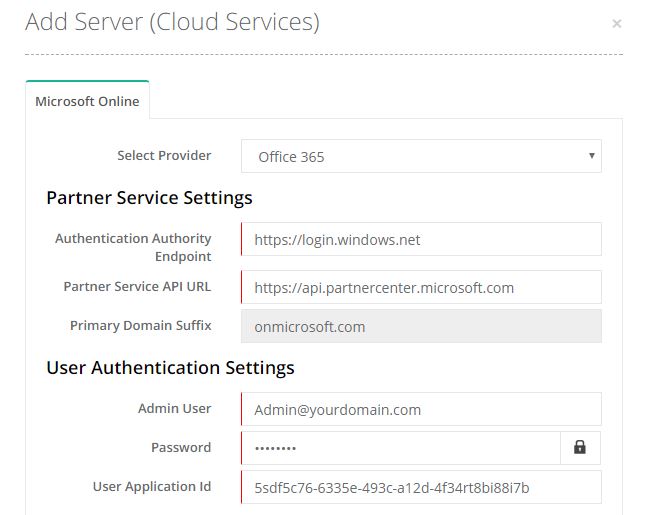
Partner Service Settings
Authentication Authority Endpoint: This URL denotes the CSP credentials for authentication and is the same for every CSP partner
Partner Service API URL: This CREST API URL is used for actual provisioning of Office 365 resources such as users, subscriptions, organizations/customers etc
Primary Domain Suffix: The onmicrosoft.com domain is the initial domain created by Office 365 when you sign up for the service. It’s same for every CSP partner
User Authentication Settings
Admin User: CSP Admin user credentials provided by Microsoft, it must have privileges to provision services in CSP account
Password: CSP Admin account password
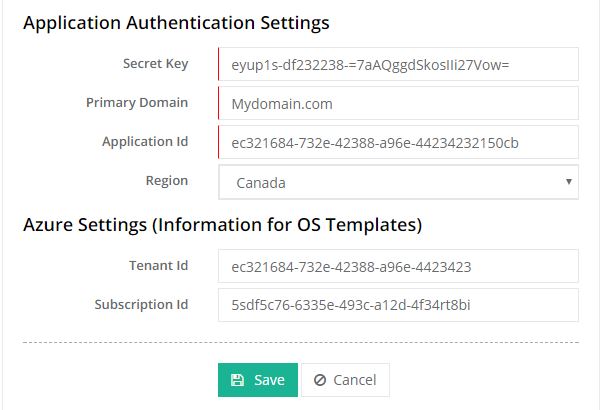
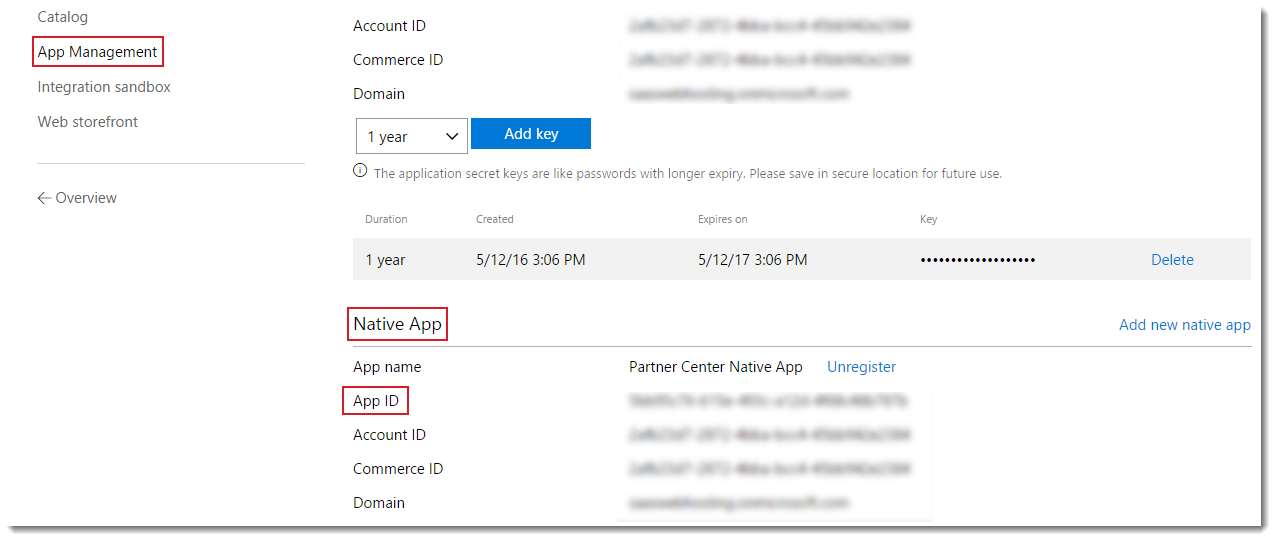
User Application Id: Application ID which is listed under Native App in CSP Partner Center > Account settings > App Management > Native App
Application Authentication Settings
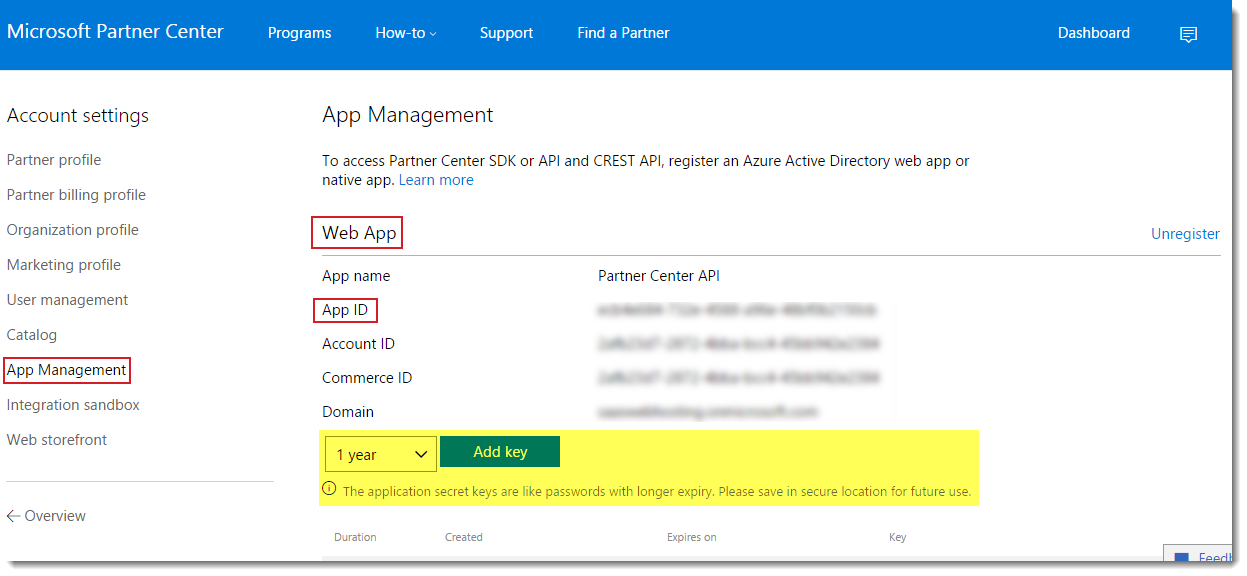
Secret Key: Application secret keys are like passwords with longer expiry. They are provided by Microsoft for application authentication. Always save them in a secure location for future use. You can generate in CSP Partner Center > App Management under Web App.
Primary Domain: This is your default domain and can be viewed at this location in the Microsoft Partner Center > Dashboard >> Account settings > Organization profile > Default domain.
Application Id: This is the Application Id used for application authentication. It can be viewed at this location in the Microsoft Partner Center > Account settings > App Management > Web App.
Region: Select the region which is allowed by Microsoft for your CSP account
Azure Settings (Information for OS Templates):
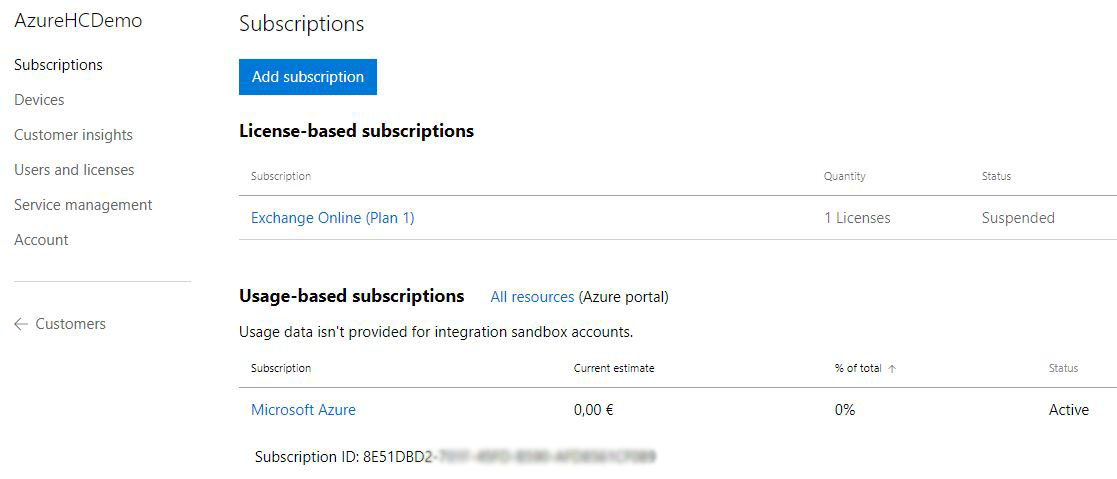
These settings requires to provision Azure machines under a CSP account. It is mandatory that you create a customer in your CSP account and sell "Windows Azure" subscription. After that we will be able to get the entries for below two fields.
Tenant ID: It is the Microsoft ID for the customer you added as described above?

Subscription Id: It is the Microsoft Azure Subscription ID which you can find under the customer you have added as described above
Add OS Template
In this step we will be adding Microsoft Azure OS template, later this template we can assign in a HC hosting plan that will be assigned to a customer
To add OS template login in HC Panel as Global Admin, At top right corner of the screen click the configurations icon click MS Online Module Conf > OS Templates > Add OS Template. Sample Template is showing below
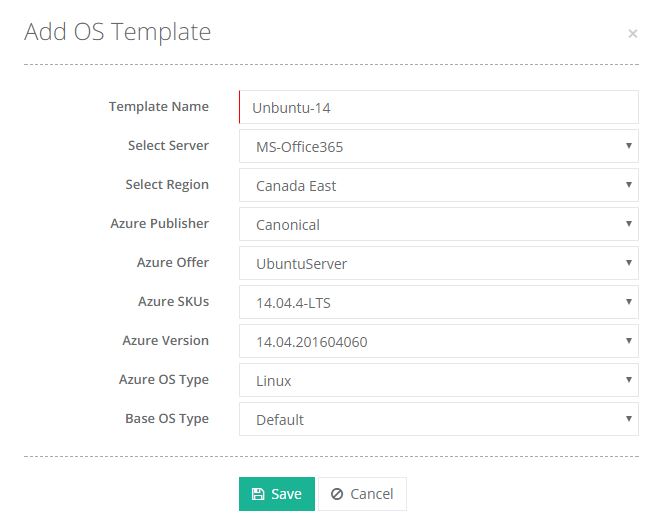
Example OS Template values
Windows:
Azure Publisher = MicrosoftWindowsServer
Azure Offer = WindowsServer
Azure SKUs = 2008-R2-SP1
Azure Version = 2.0.20160430
Azure OS type = Windows
Linux:
Azure Publisher = Canonical
Azure Offer = UbuntuServer
Azure SKUs = 16.10-DAILY
Azure Version = 16.10.201608170
Azure OS type = Linux
Add Composite Resources
The next would be is to add composite resource for MS Online Azure in HC Panel Global Admin interface by selecting menu Service Catalog > Composite Resources > Add Composite Resources
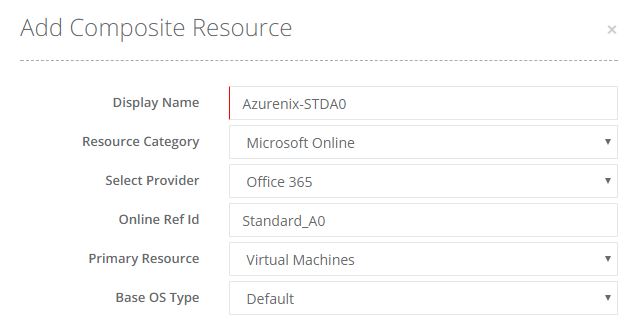
?Add Service Plan
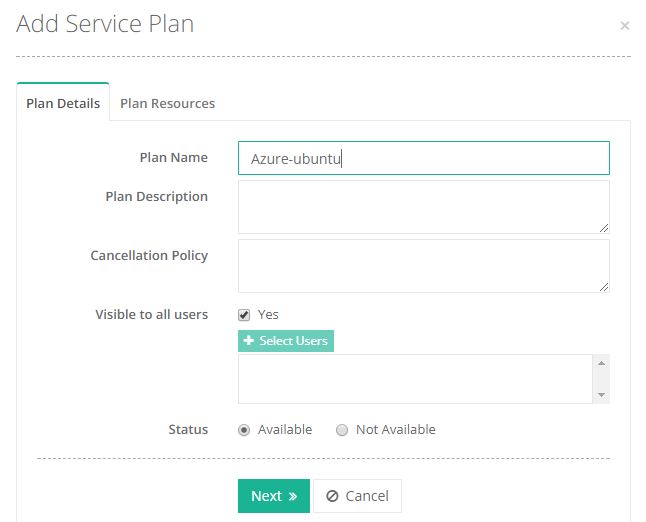
In this step we will be adding a Package or Service plan in which we will assign Composite Resource (OS Template). Using HC Panel interface select menu Service Catalog > Service Plans > Add Service Plan.
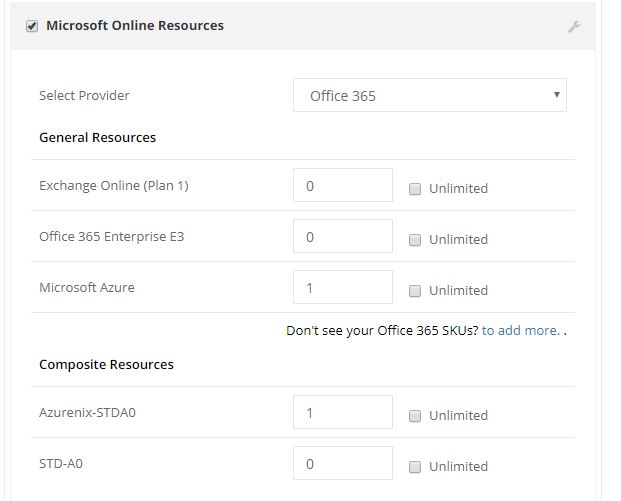
On next screen select "Microsoft Online Resources" and give Quantity for Windows Azure = 1 & Composite Resource = 1. If you are unable to view the Windows Azure resource on this screen then click add more option to load all CSP SKUs.?
Add Client in HC Panel
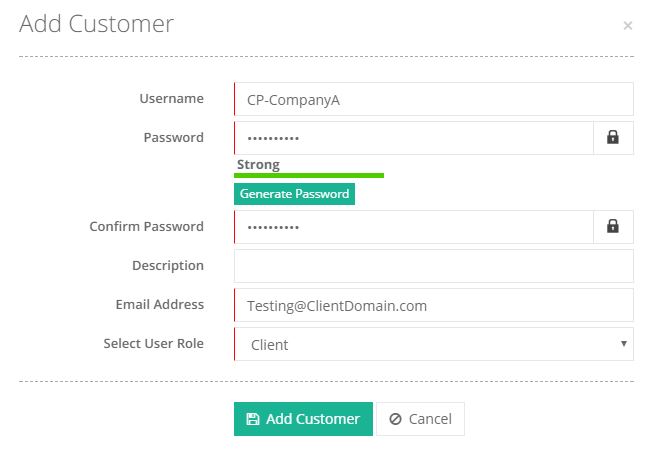
In this step we will add a end client/customer for whom we will provision MS Online Services and Sell the Service plan which we have added just above. This will just be a control panel user who can login in HC interface and manage their services. Using Control Panel Global Admin select menu Panel Users > Customers > Add Customer
Once user added then you can sell him the Service Plan [The one that include Windows Azure subscription] by selecting menu Service Catalog > Service Plans > Chose the Plan and click Sell button to sell it to the newly added control panel user.
Provision Azure Customer
?Azure machine can be provisioned using Panel Host Account as well as from Client interface. Select menu "Provisioning > Office 365 > Select the CSP Customer > from drop down button select Microsoft Azure ". Fill the required information on the next screen to provision a service in Azure.
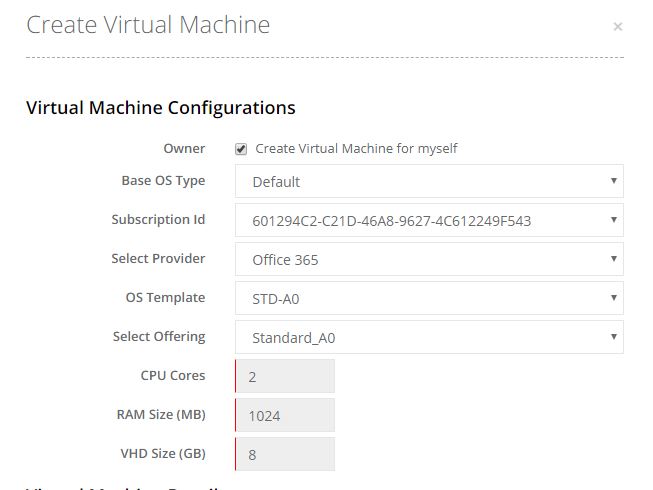
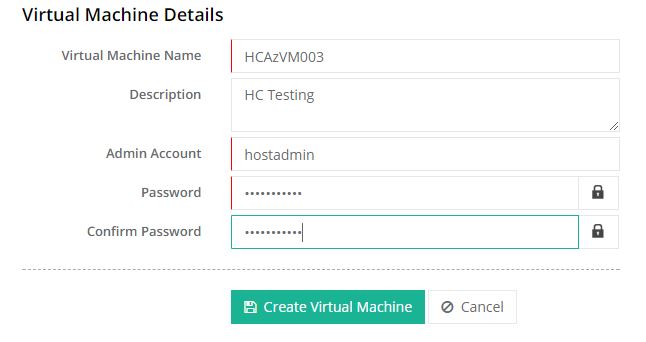
Once you click the "Create Virtual Machine" button the control panel will list message. Success: Virtual machine creation process started successfully with the following details.
You can see the ongoing VM creation progress using same Panel menu "Provisioning > Office 365 > Select the CSPCustomer > from drop down button select Microsoft Azure ".