| Product Documentation
Hybrid Control Panel (v10)
Exchange Reports
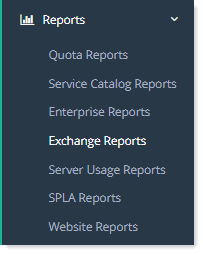
This section shows exchange related reports.
Viewing Exchange custom reports
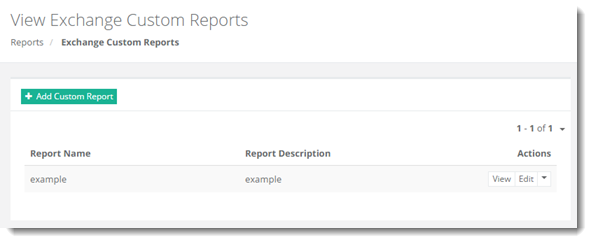
To view Exchange custom reports, go to Reports >> Exchange Reports.
|
View Exchange Custom Reports page show reports with additional information as:
|
View Exchange Custom Reports page allow admins to add/edit/view/delete/download custom reports. For further details, refer to the following sections:
Adding a Custom Report
To add a custom report, click + Add Custom Report and specify required information to proceed.
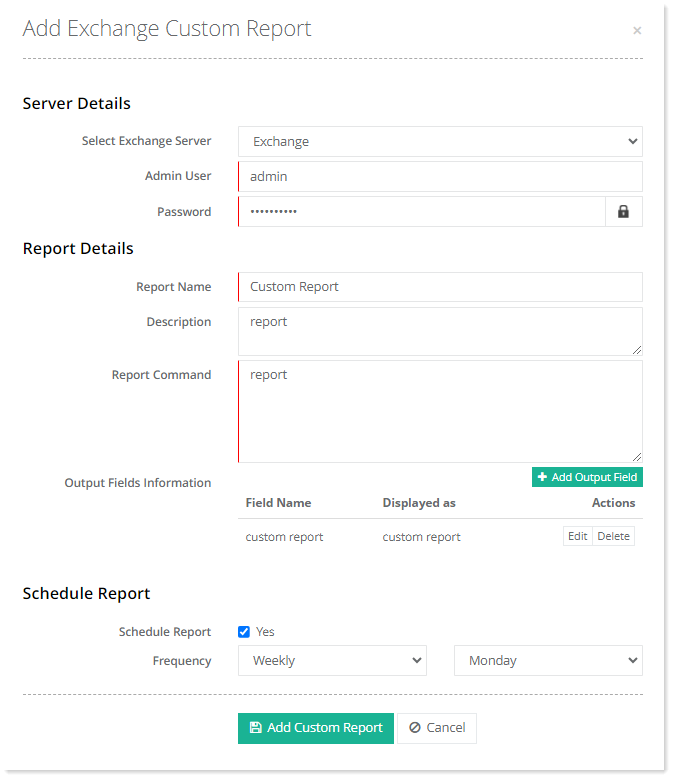
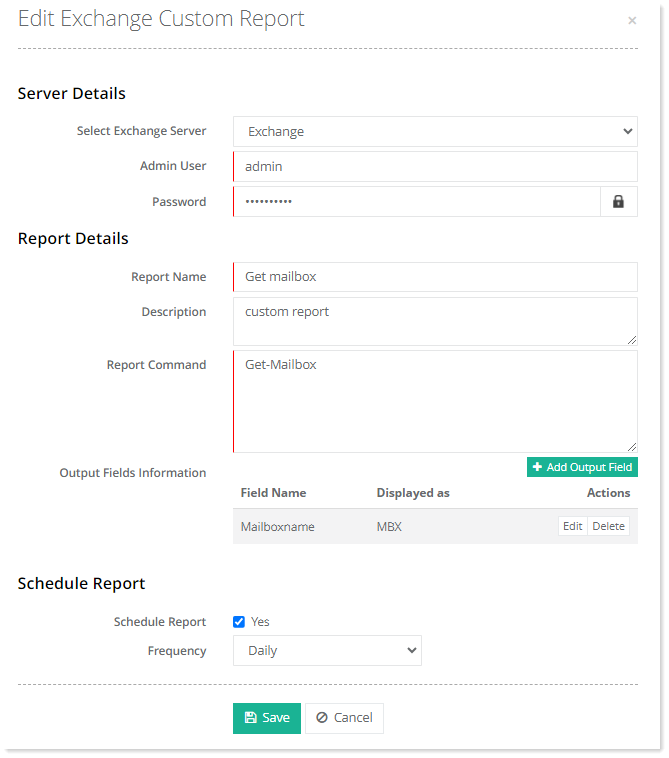
- Report Command: Type valid Exchange PowerShell command(s). The report will be filtered based on typed PowerShell command(s).
- Schedule Report: Specify whether to schedule the report on a daily or weekly basis. Scheduling is handled by Hosting Controller’s built-in task scheduler. A scheduled report is emailed in PDF to the Global Admin user. Enable the check box to enable scheduling.
- Frequency: This indicates the frequency with which the report is generated. It can either be generated daily or weekly.
Viewing a Custom Report
To view a custom report, click View under Actions column.
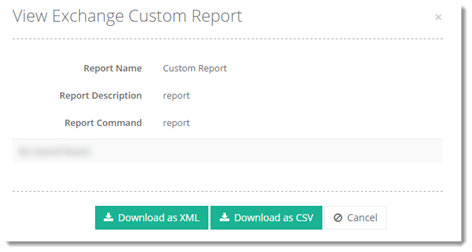
To download reports in XML and CSV formats, click Download as XML or Download as CSV respectively.
Editing a Custom Report
To edit customer report details, click Edit under Actions column.
Deleting a Custom Report
To remove a customer report, click Delete under Actions column.