
| Product Documentation
Hybrid Control Panel (v10)
Adding a Skype for Business Server
Prior to add a Skype for Business server, make sure you have enabled the server roles under Cluster Settings. If you have not configured it yet, please configure it now to proceed further.
To add a Skype for Business server, specify General Information and click Check Connectivity. Once you are connected successfully, only then you can add a Skype for Business server. For more information about how to configure Skype for Business with HC, see HC Skype for Business.
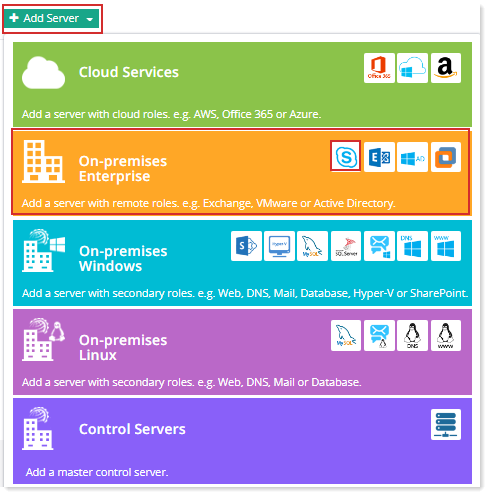
Fields marked in red are required fields and cannot be left empty.
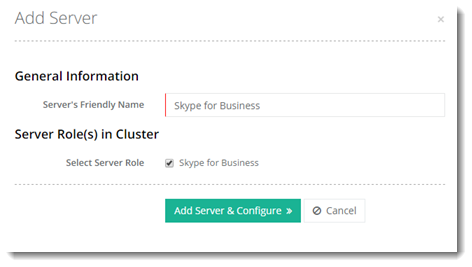
- Server Friendly Name: It is a friendly name of the server being added for your convenience.
- Server Role: Select server role as required.
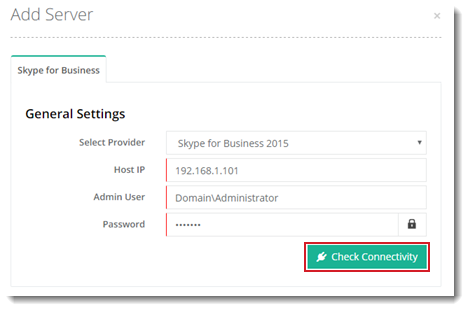
- Host IP: Specify IP of the actual Skype for Business Front-End server.
- Admin User: Credentials for a domain\administrator user on Skype for Business server.
- Password: Password for the user.
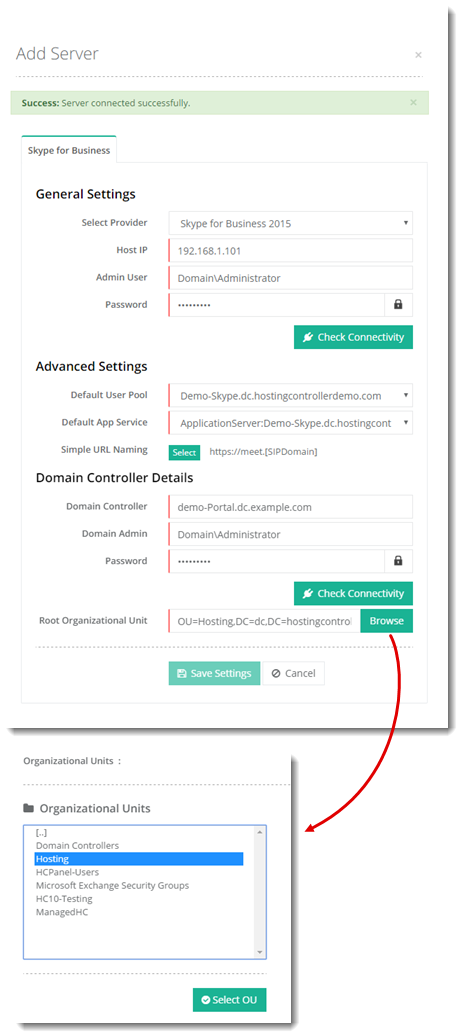
- Default User Pool: When a Skype for Business user is enabled for Skype for Business Server 2015, it must be homed on a Registrar pool. This pool is responsible for authenticating the user and for keeping track of its current status and location. This field allows you to select a default Registrar pool for users. New users will be assigned to the specified Registrar pool. Certain customers may also be assigned selected Registrar pools. These customers would then only have the assigned Registrar pools at their disposal. Pools can be assigned to Customers at Configurations >> Skype Module Conf. >> User’s Skype Server Pools.
- Select Domain Controller: The Domain Controller associated with Skype server. This information is fetched automatically. There can be more than one Domain Controllers for high availability. If one of the Domain Controllers goes down due to a disaster, HC automatically fails over to the second Domain Controller, ensuring constant uptime. The Domain Controller listed on the top has the highest priority while subsequent Domain Controllers have low priorities.
If HC control server is not a member of a domain, multiple domain controllers will not list for the Skype for Business server. Only a single domain controller will list.