
| Product Documentation
Hybrid Control Panel (v10)
Partner Consent (MFA) Mode
In order to meet security compliance guidelines by Microsoft for CSP partners, Hosting Controller control panel supports MFA enabled account of CSP tenant. The process to configure MFA mode is fairly simple and can be followed even by a novice user with the help of the below instructions:
- Steps required at Microsoft Partner Center / Azure Portal end.
- Steps required at Hosting Controller end.
1) Steps required in Microsoft Partner Center / Azure Portal :
- Adding and configuring Web App in Microsoft Azure Portal and specifying Redirection URI.
- Adding Secret Key in Microsoft Partner Center.
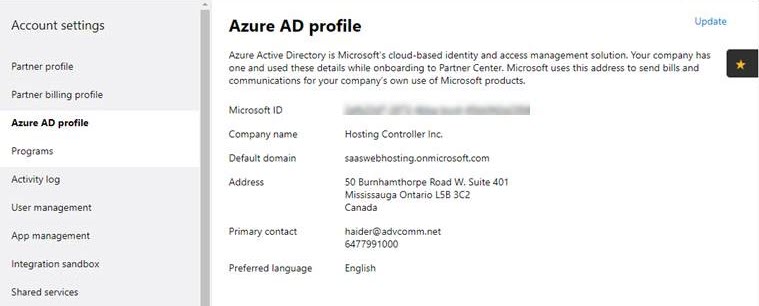
- Specifying Microsoft ID that is assigned to your Company by Microsoft while on boarding to Partner Center.
(a) Adding and configuring Web App in Microsoft Azure Portal: If you have already added Web App (which is not a native app), you may skip this point. If not added then navigate to the Azure portal - App registrations page to register your app. Sign in to the Azure portal using your Microsoft account.
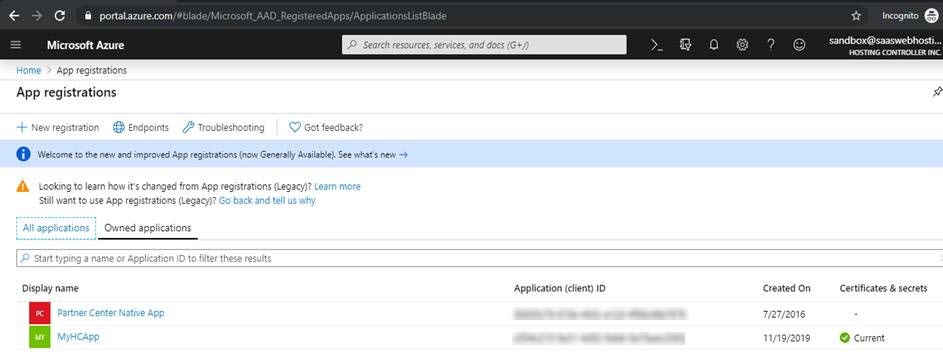
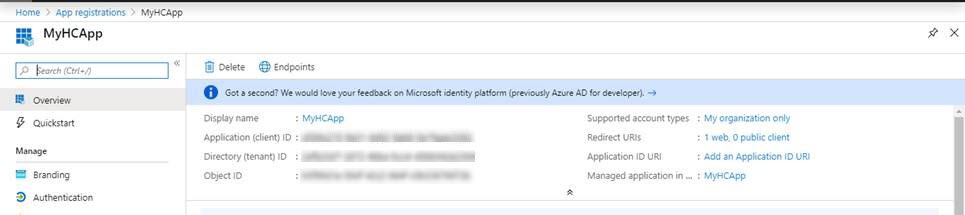
Select your Web App (not native app) and click on Redirect URIs
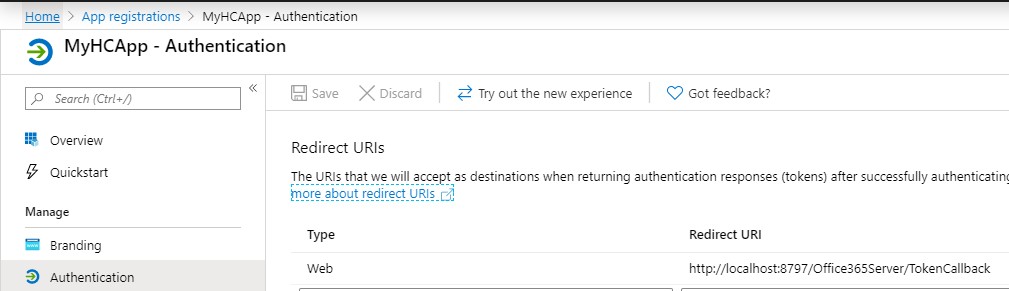
Now specify the HC10 Portal URL. Sample URL is shown below.
(b)Adding Secret Key in Microsoft Partner Center:If you already have copied Secret key, you may skip this point. To add Secret Key for Web App, follow these steps:
- Login into Microsoft Partner Center using your account and navigate to App Management section and then click on Add Key button.
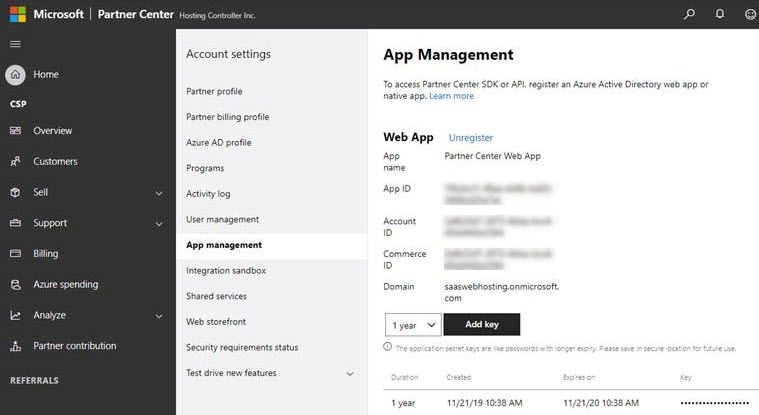
- Save and copy the secret key value. This value will not be shown again once you leave this page.
(c) Note Microsoft ID assigned to your Organization by Microsoft: Note Microsoft ID that is assigned to your Company by Microsoft while onboarding to Partner Center. This will also be needed while configuring CSP Server in Hosting Controller with MFA mode. To see your organization Profile Microsoft ID, refer to this link : https://partner.microsoft.com/en-us/pcv/accountsettings/organizationprofile
2) Configurations required at Hosting Controller end:
To configure Microsoft CSP with MFA Enabled mode in HC panel, login as Global Admin in HC panel and navigate to the menu: Configurations >> Server Manager >> Servers >> Add/Edit Office 365 Server. Here note the mandatory fields and their values given below.
- Authentication Type : Select option “Partner Consent ( MFA )”.
- Secret Key : Specify value which you noted down in step # 1(b).
- Application ID : Specify the value which was noted down from Microsoft Partner Center >> App Management Section in step # 1(b).
- CSP Tenant ID : Specify the value of Microsoft ID noted in Microsoft Partner Center under step # 1(c).