| Product Documentation
Hybrid Control Panel (v10)
Creating a virtual machine
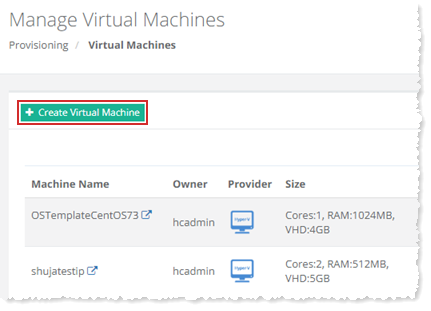
To create a virtual machine, click + Create Virtual Machine at top left. Specify required information to proceed. For more information about Hyper-V, see Provisioning a virtual machine through Hyper-V. For information about VMware, see Provisioning a virtual machine through VMware.
Myself
To create virtual machine for myself, select the checkbox Create Virtual Machine for myself and specify required information as:
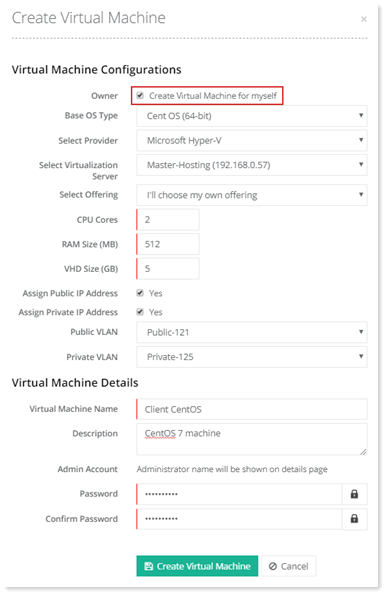
- Assign Public IP Address: Check the checkbox to automatically assign a public IP to the virtual machine. Hosting Controller will pick an IP from the available range defined for the Hyper-V host and assign it to the virtual machine. A single IP is assigned to the machine at the time of its creation. However, more IPs can be assigned to the machine later from its dashboard.
- Assign Private IP Address: Check the checkbox to automatically assign a private IP to the virtual machine.
- Public VLAN: VLANs can be assigned to VMs during creation or they can be assigned after creation through the VM dashboard.
- Virtual Machine Name: Specify the hostname of the virtual machine.
- Admin Account: Administrator of the virtual machine. The administrator’s name will be displayed on the summary page.
- Password: Set the password for the machine administrator. The password will be displayed on the summary page.
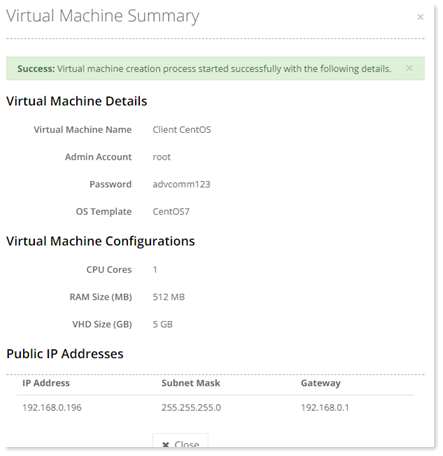
The next screen displays the VM summary before creation. HC associates an OS template with a base OS type. While creating a virtual machine just specify the base OS type and HC will automatically fetch the appropriate OS template. The summary page displays this associated template.
Specified User
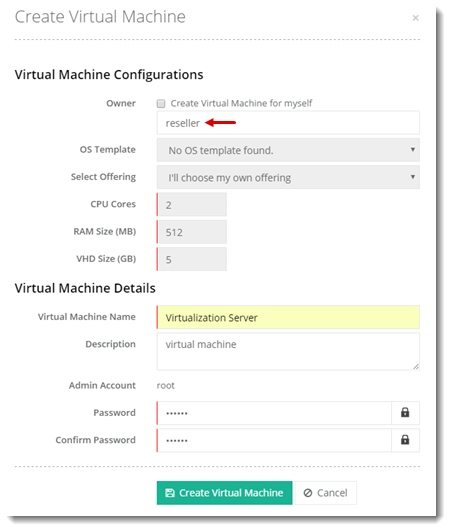
To create virtual machine for selected user, specify name of the required user as: