
| Product Documentation
Hybrid Control Panel (v10)
Importing existing virtual machine
Prior to importing a virtual machine, make sure that a public IP or a range of public IPs is assigned to the user under which the machine is being imported. Without IP assignment the machine will not be imported under the user and may end up going to the Global Admin. To learn how to assign IPs to users, see Managing Public IP Addresses.
Existing virtual machines can be imported into HC10. The admin may import virtual machines for itself or for any customer beneath. Both Hyper-V and VMware machines can be imported.
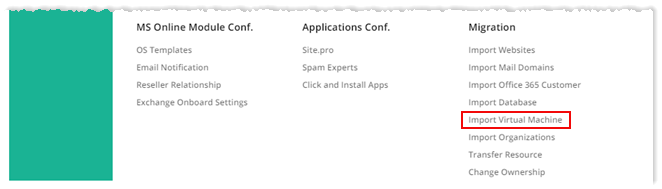
To import virtual machines, from top right corner of your screen, click  and then go to Migration >> Import Virtual Machine.
Fields marked in red are required fields and cannot be left empty.
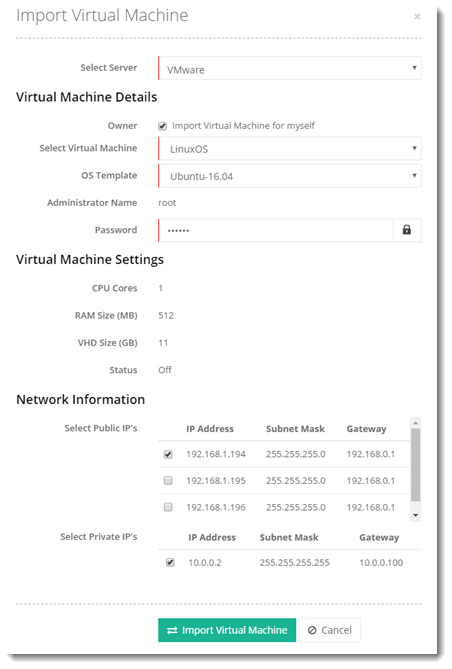
Before importing a virtual machine, make sure the panel already includes an OS template with a base OS that matches the operating system of the machine being imported. To learn how to add an OS template, see Managing OS Templates.