| Product Documentation
Hybrid Control Panel (v10)
Managing Control Server
The Control Server constitutes the main backbone of HC10. It carries the HC Primary installer and is responsible for performing or routing provisioning tasks. It also contains HC DB, APIs and task scheduler. Being a Control Server it contains all the three components of the HC Primary installer namely:
- Portal
- API
- Provisioning Services and centrally controls all other roles in the cluster.
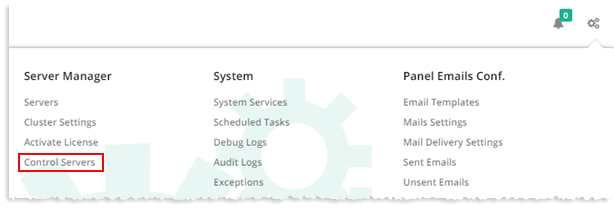
To manage control servers, from top right corner of your screen, click  and then go to Server Manager >> Control Servers.
|
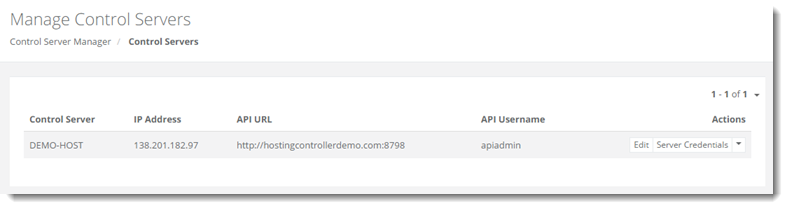
Manage Control Servers page shows list of all the existing control servers with additional information as:
|
Editing Server Information
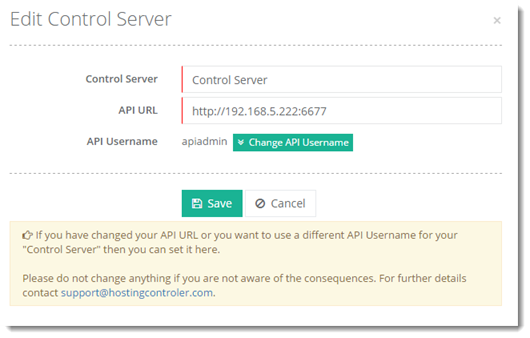
To edit control server related information, click Edit under Actions column and modify information as required.
Modifying Server Credentials
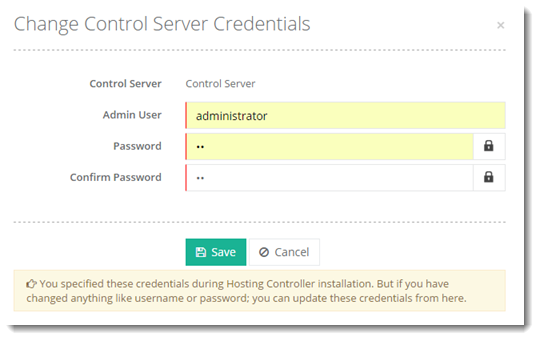
These are the machine credentials for the server. The credentials are usually of the administrator user.
To modify control server credentials, click Server Credentials under Actions column and modify information as required.
Managing General Operations
These are general tasks related to the control panel.
To manage general operations, click Manage General Operations under Actions column and modify information as required.
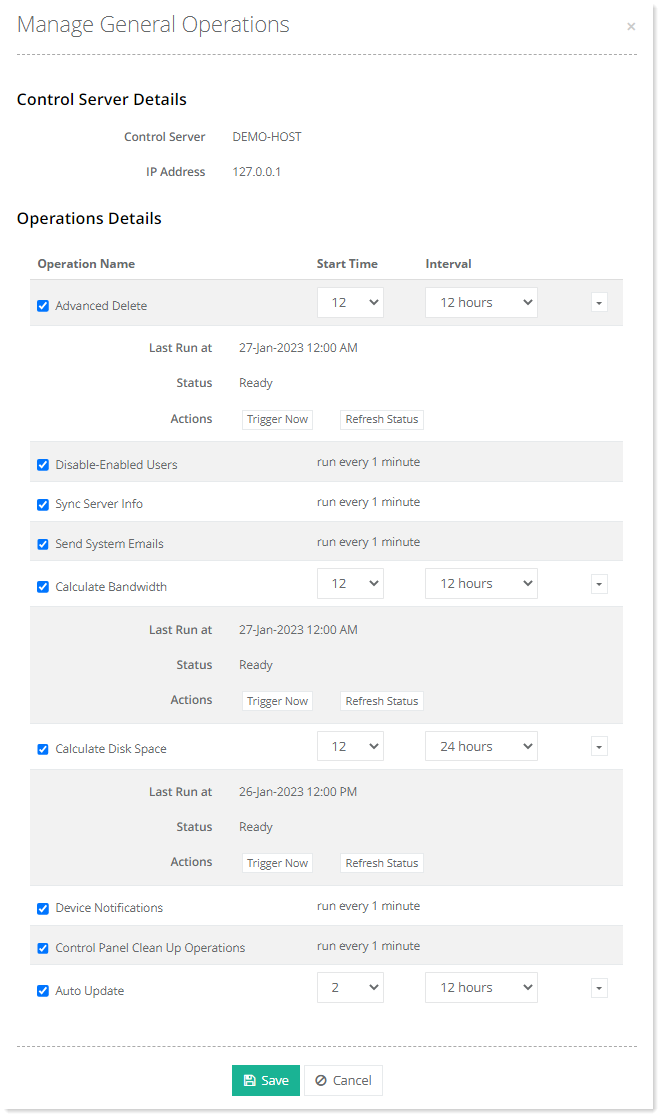
- Operation Name: It is the name of the scheduled task.
- Start Time: It is the time of the day when the scheduled task will trigger initially. For instance a task can be set to trigger at 2:00 p.m. initially.
- Interval: It is the frequency with which the task will repeat. The task can be set to repeat every 12 hours or every 24 hours. For instance if a task is scheduled to start at 2:00 p.m. and is set to repeat every 12 hours, it will trigger at 2:00 p.m. and 2:00 a.m. daily.
- Trigger Now: Scheduled tasks can also be triggered anytime manually from HC GUI. For instance, Calculate Disk Space task can be triggered immediately with the Trigger Now option.
- Refresh Status: It updates both the Last Run at and Status attributes of the scheduled task. For instance, if the Last Run at and Status attributes of Calculate Disk Space are 16-May-2023 12:00 p.m. and Ready respectively, and the task is triggered manually on 17-May-2023 at 5:00 p.m., clicking the Refresh Status button will update the status to show 17-May-2023 5:00 p.m. and Ready respectively.
Managing Advanced Operations
These are HC services tasks related to particular services such as Exchange.
To manage advanced tasks, click Manage Advanced Operations under Actions column and modify information as required.
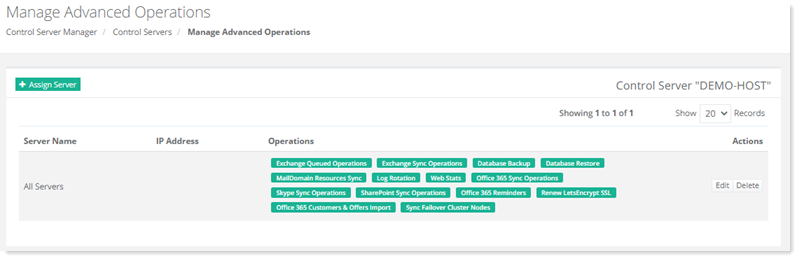
Click Edit under Actions column to modify information as required.
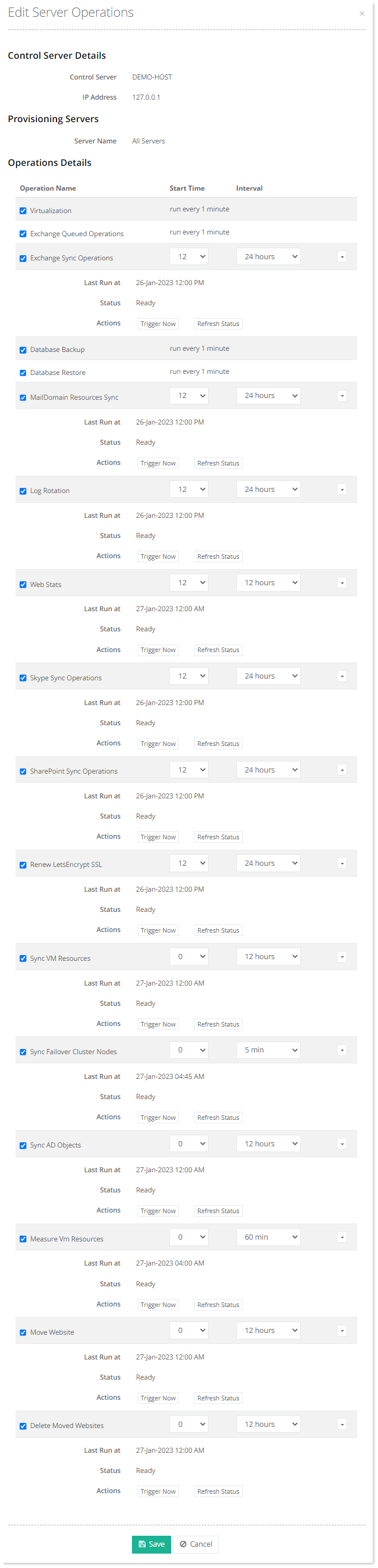
- Operation Name: It is the name of the scheduled task.
- Start Time: It is the time of the day when the scheduled task will trigger initially. For instance a task can be set to trigger at 2:00 p.m. initially.
- Interval: It is the frequency with which the task will repeat. The task can be set to repeat every 12 hours or every 24 hours. For instance if a task is scheduled to start at 2:00 p.m. and is set to repeat every 12 hours, it will trigger at 2:00 p.m. and 2:00 a.m. daily.
Click Delete under Actions column to remove the server.