
| Product Documentation
Hybrid Control Panel (v10)
Viewing public folder dashboard
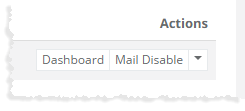
To view public folder dashboard, click Dashboard under Actions column.
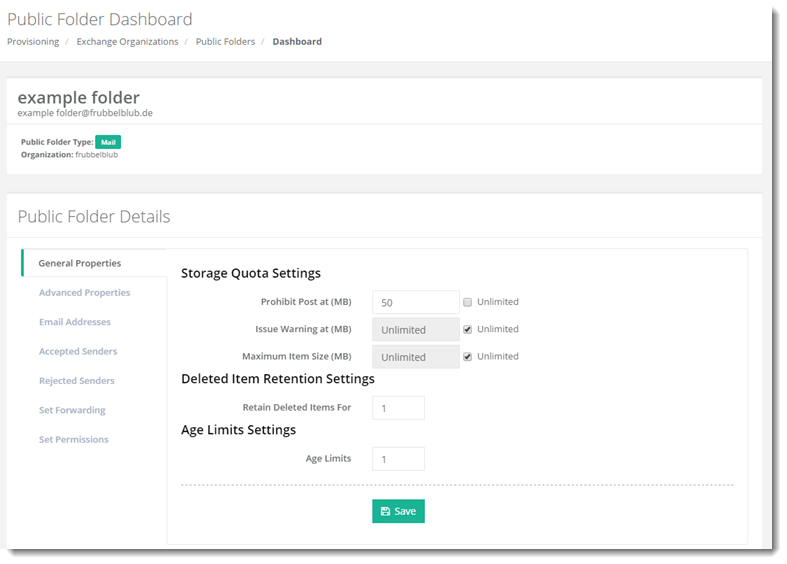
General Properties
To view/modify storage quota related details, click General Properties.
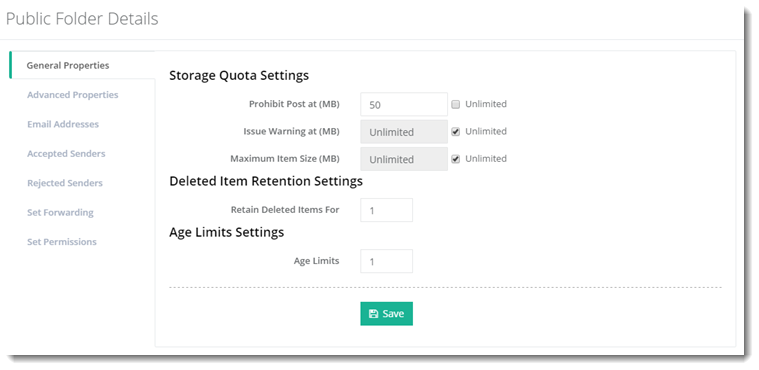
- Prohibit Post at (MB): This specifies the limit after which no more data can be posted to the public folder.
- Issue Warning at (MB): This is the limit at which public folder owners are warned that the public folder is approaching its storage limit. Public folder owners will receive a warning when the public folder reaches this size.
- Maximum Item Size (MB): This is the maximum item size that users can post to the public folder.
- Retain Deleted Items For: This indicates the number of days for which deleted items are retained.
- Age Limits: This specifies the age limit for folder content in days. Folder content will be automatically removed when this age limit is exceeded. This is a folder level setting. If the user doesn’t want to use organization age limit defaults, then it can use this setting and specify an age limit manually on the folder.
Advanced Properties
To view/modify other details, click Advanced Properties.
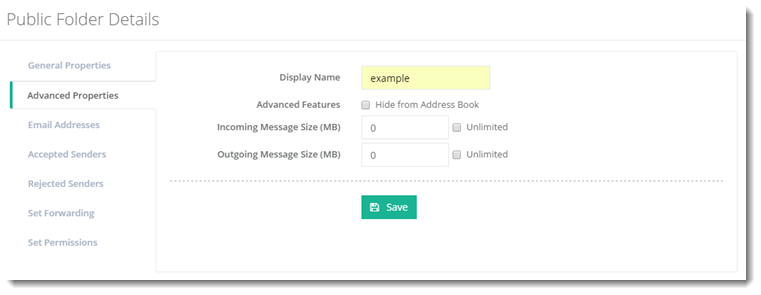
- Display Name: This is the display name of the public folder.
- Hide from Address Book: Mail enabled public folders can be hidden from the organization’s address book. Enabling the check box hides the public folder from the organization’s address book but it can still receive email.
- Incoming Message Size (MB): This indicates the maximum size of email messages that can be sent to the mail enabled public folder.
- Outgoing Message Size (MB): This indicates the maximum size of email messages that can be sent by the mail enabled public folder.
Email Addresses
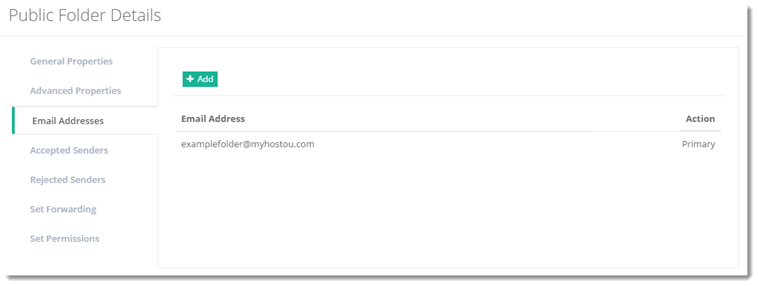
To view/add email addresses of the public folder, click Email Addresses.
Accepted Senders
To view/modify accepted senders information, click Accepted Senders.
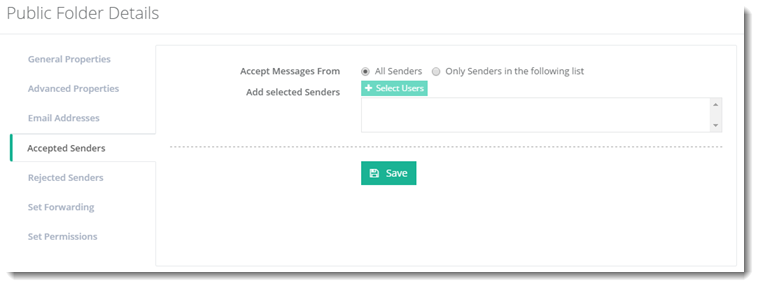
- Accept Messages From: This defines if the mail enabled public folders are to accept messages from all senders or only senders listed in the list gathered from the GAL.
Rejected Senders
To view/modify rejected senders information, click Rejected Senders.
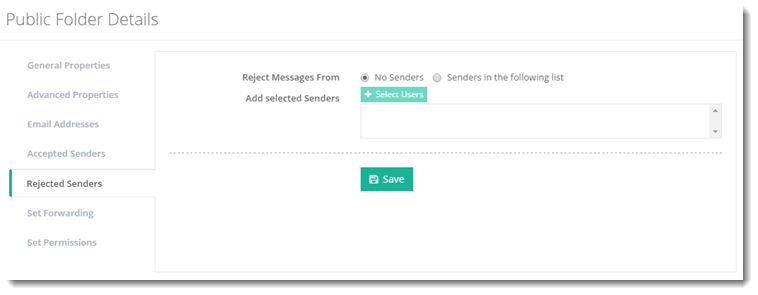
- Reject Messages From: This defines if the mail enabled public folders are to reject messages from all senders or only senders listed in the list gathered from the GAL.
Set Forwarding
To view/modify forwarding information, click Set Forwarding.
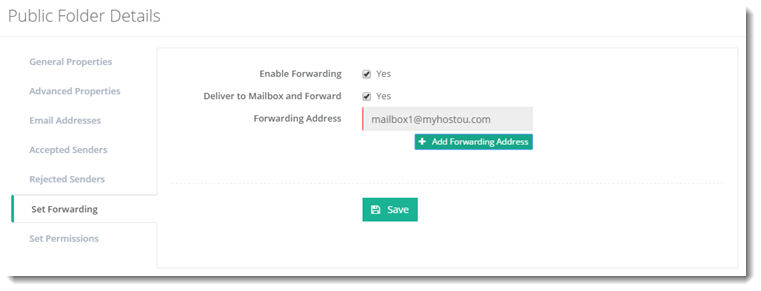
- Enable Forwarding: This enables the forwarding feature.
- Deliver to Mailbox and Forward: This option if enabled, delivers mail to both the public folder as well as the forwarding address. The option should remain unchecked if the mail is to be delivered only to the forwarding address.
- Forwarding Address: Here all addresses, the mail is to be forwarded to, should be specified. Mail can be forwarded to user mailboxes, mail contacts, distribution lists and other public folders. All organizations (O.U.) under the panel user will be visible while adding forwarding and all users under them can be chosen for forwarding.
Set Permissions
When a public folder is created, users can be granted certain permissions on it. Permissions determine the level of control a user has over a public folder or public folder hierarchy. In addition to these permissions, roles with multiple permissions can be created.
To view/modify folder related permissions, click Set Permissions.
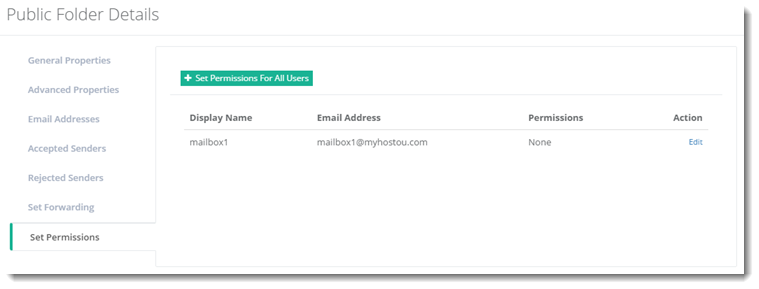
Following are the different roles and the permissions that are granted to each role.
| Role | Permission |
| None | No permissions are granted. The user cannot open the folder. |
| Owner | CreateItems, ReadItems, CreateSubfolders, FolderOwner, FolderContact, FolderVisible, EditOwnedItems, EditAllItems, DeleteOwnedItems, DeleteAllItems |
| PublishingEditor | CreateItems, ReadItems, CreateSubfolders, FolderVisible, EditOwnedItems, EditAllItems, DeleteOwnedItems, DeleteAllItems |
| Editor | CreateItems, ReadItems, FolderVisible, EditOwnedItems, EditAllItems, DeleteOwnedItems, DeleteAllItems |
| PublishingAuthor | CreateItems, ReadItems, CreateSubfolders, FolderVisible, EditOwnedItems, DeleteOwnedItems |
| Author | CreateItems, ReadItems, FolderVisible, EditOwnedItems, DeleteOwnedItems |
| NonEditingAuthor | CreateItems, ReadItems, FolderVisible |
| Reviewer | ReadItems, FolderVisible |
| Contributor | CreateItems, FolderVisible |