
| Product Documentation
Hybrid Control Panel (v10)
Adding an IaaS Computing Server
Pre-reqs
- The supported hypervisor in the On-premises Enterprise category is VMware ESXi.
- HC installation is not required on the ESXi host. It will communicate remotely with the bare-metal ESXi host.
- Software Requirements
Windows 2019/2016/2012/2008 Server with HC10 (This is the control server where HC10 and VMware-viclient & VMware-VIX API will be installed). This control server will remotely communicate with the bare-metal ESXi host. - Hardware Requirements
VMware ESXi compatible server. This is the machine which will be used to provision VPS. However HC software itself will not be installed on this server. Intel Xeon 56xx Series or Intel Xeon 75xx Series. Click here for Compatibility Details. - For the pre-reqs of ESXi 8.0 and later versions, see Pre-requisites for ESXi 6.5 and Later Versions.
An ESXi host can only be configured by the topmost admin, also known as the global admin. As the global admin is the one performing all control operations and cluster configurations, it is also the admin responsible for configuring an ESXi host machine in Hosting Controller. Lower-level admins cannot configure an ESXi host machine.
To add an IaaS Computing server, specify General Information and click Check Connectivity. Once you are connected successfully, only then you can add an IaaS Computing server. The supported hypervisor in the On-premises Enterprise category is VMware ESXi. A Hypothetical server will be added here which will be a placeholder for the bare-metal ESXi host. In reality, Hosting Controller will communicate remotely with the bare-metal ESXi host.
For more information on how to add a VMware server, see VMware Infographic.
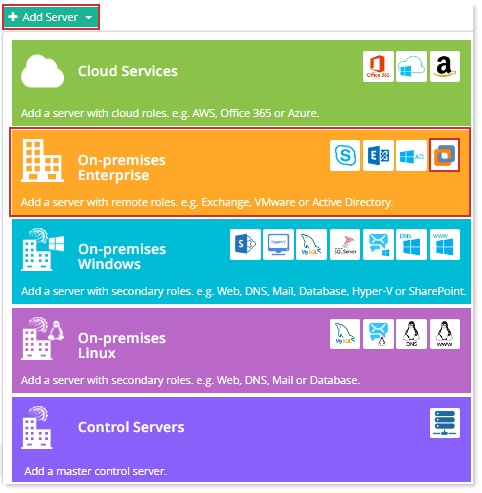
Fields marked in red are required fields and cannot be left empty.
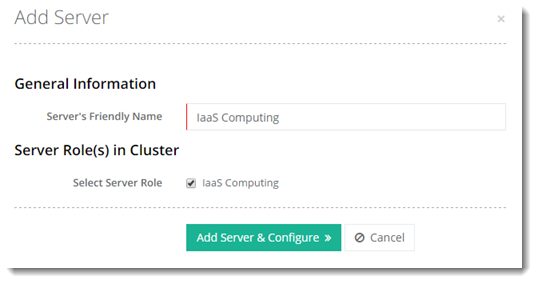
- Server Friendly Name: It is a friendly name of the server being added for your convenience.
- Server Role: Select server role as required.
This is a hypothetical server with a Friendly Name, without any physical existence. It only serves as an identifier in the panel. In reality, the Control Server communicates with the actual IaaS Computing server (ESXi host) directly via API.
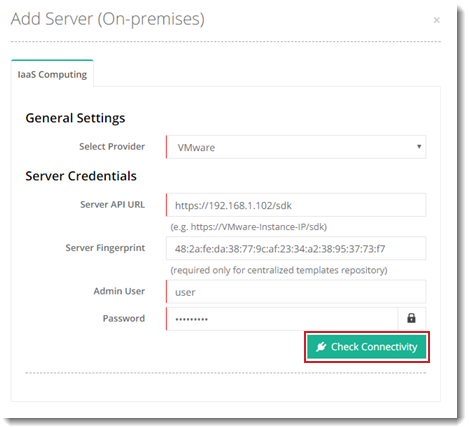
- Select Provider: Select provider from the drop-down list box. VMware ESXi is the IaaS Computing platform in this category.
- Server API URL: Specify server API URL of the actual IaaS Computing server (ESXi host). This is the URL for the vSphere Web Services SDK.
- Server Fingerprint: Specify server fingerprint of IaaS Computing server. Fingerprints are a short sequence of letters and numbers that uniquely identify public keys. As Public keys are large, therefore much shorter fingerprints are the best way to uniquely identify them. When trying to login to a remote computer using SSH, it’s the fingerprint of the key of the host machine that is verified. In the case of VMware fingerprints are required because OS templates are to be fetched from a repository residing on a remote Windows server. Fingerprints prove vital here in identifying the ESXi host that needs to be accessed during the process of copying templates.
- Admin User: Specify the root user of the ESXi host machine. This is the most privileged user of the system.
- Password: Password for the root user.
- Check Connectivity: The check connectivity button sends an API call to the ESXi host machine that establishes a connection between Hosting Controller and the ESXi host.
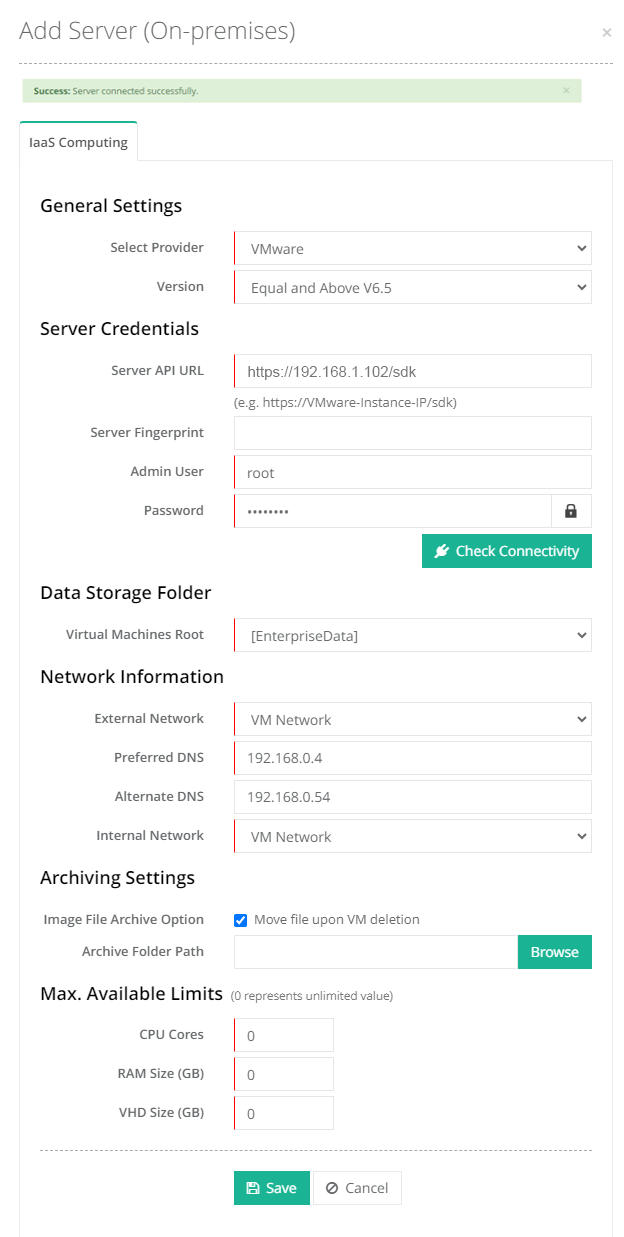
- Virtual Machines Root: Select the virtual machines root folder. This specifies the storage location of all virtual machines created by Hosting Controller. To store virtual disks, ESXi uses datastores. Datastores are logical containers used by ESXi hosts to store virtual machine files.
- Image File Archive Option: By default, when a virtual machine is deleted from the VMware web client, it deletes the virtual machine from the list of virtual machines along with its VMDK file. To customize the behavior for better management, the VMDK file for the deleted machine can be moved to a designated folder. Later if a customer asks to restore its deleted virtual machine, it can be done easily by restoring the virtual machine using the virtual hard disk file.
- Move file upon VM deletion: This specifies whether the VMDK files need to be moved to a designated folder.
- Archive Folder Path: This is the folder path where the VMDK files need to be moved, in case of a designated folder.
See how to Configure ESXi Host.