| Product Documentation
Hybrid Control Panel (v10)
Configuring Custom Menus
Custom Menus are your own menu items which may be added to the interface besides the permanent ones. HC10 lets you add Custom Menus to your interface.
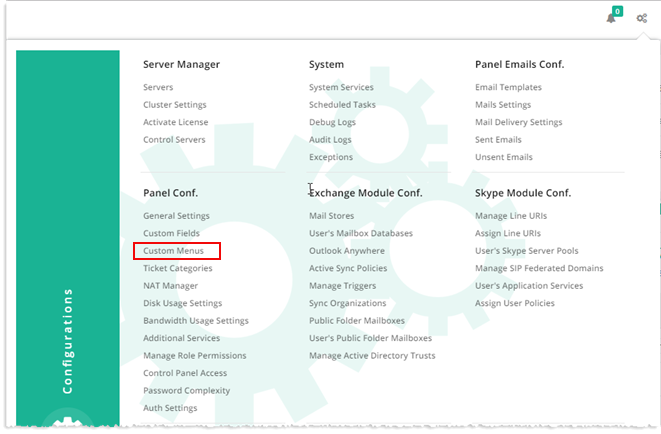
To configure custom menus of the panel, from top right corner of your screen, click  and then go to Panel Configuration >> Custom Menus.
|
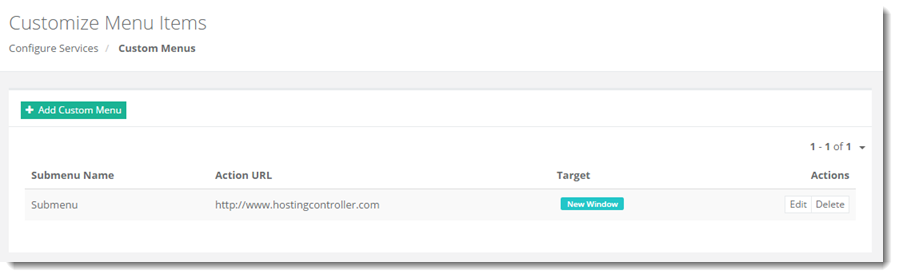
Custom Menus page shows all the available menus and additional information as:
|
Fields marked in red are required fields and cannot be left empty.
Adding a Custom Menu
To add a custom menu, click +Add Custom Menu and specify required information.
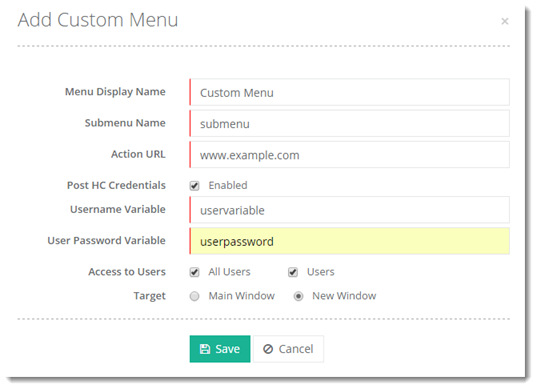
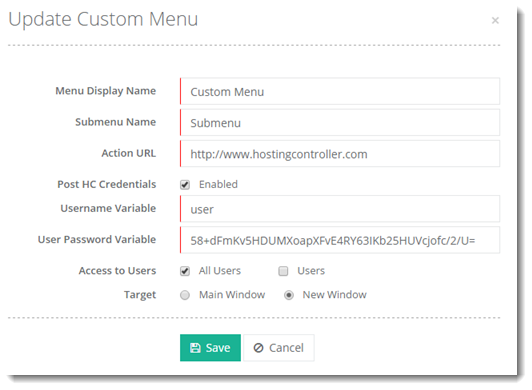
- Menu Head Display Name: It is the display name for the main menu.
- Submenu Name: It is the name for sub tabs/menus to be added under the main menu.
- Action URL: It is the destination URL to be opened when the menu (being added) is clicked.
- Post HC Credentials: This method allows HC to log the user into the external application without the need of logging in again.
- User Name Variable: It is username for the user logged in.
- User Password Variable: It is password for the user logged in.
- Access to Users: It signifies access rights of users for the menu being added.
- All Users - This option implies that immediate descendants (Resellers and Clients lying directly below) and all subsequent levels of descendants can access the menu.
- Users - This option implies that only immediate descendants can access the menu.
- Target: The destination URL may open in the same window or a new window.
- Main Window - This option, if selected, opens the menu in the same window.
- New Window - This option, if selected, opens the menu in a new window.
Editing a Custom Menu
To edit a custom menu, click Edit and modify the information as required.
Deleting a Custom Menu
To delete a custom menu, click Delete.