| Product Documentation
Hybrid Control Panel (v10)
Viewing Exchange mailboxes report
To view Exchange mailboxes report, go to Reports >> Enterprise Reports and click View under Exchange Mailboxes Report section to proceed.
|
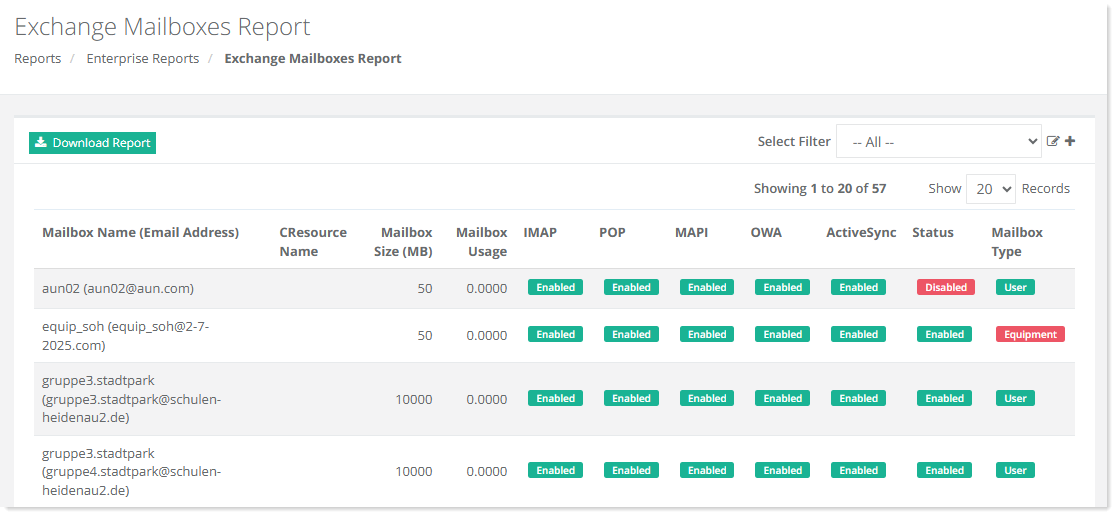
Exchange Mailboxes Report page shows Exchange mailboxes with additional information as:
|
To view a detailed report, click Download Report. The report will be downloaded in CSV format with UTF support.
Adding a Search Filter
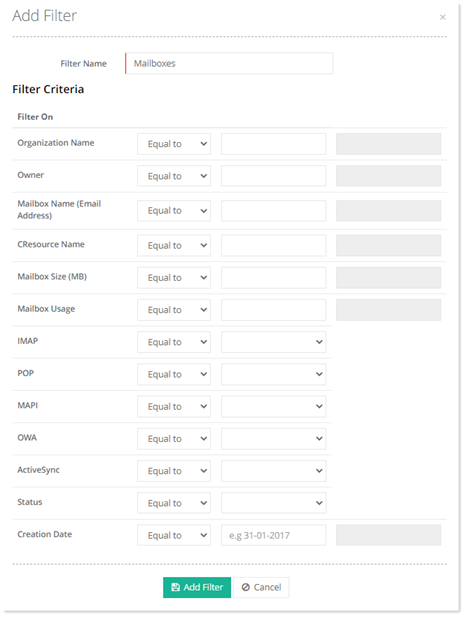
To add a search filter, click  at top right to proceed.
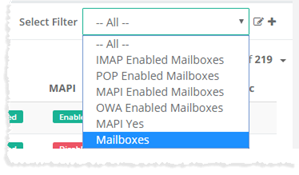
Added filter can be seen on Exchange Mailboxes Report page in the Select Filter list as: