
| Product Documentation
Hybrid Control Panel (v10)
Configuring WHMCS
To configure WHMCS with HC10, login into WHMCS admin interface.
1) Adding a Server
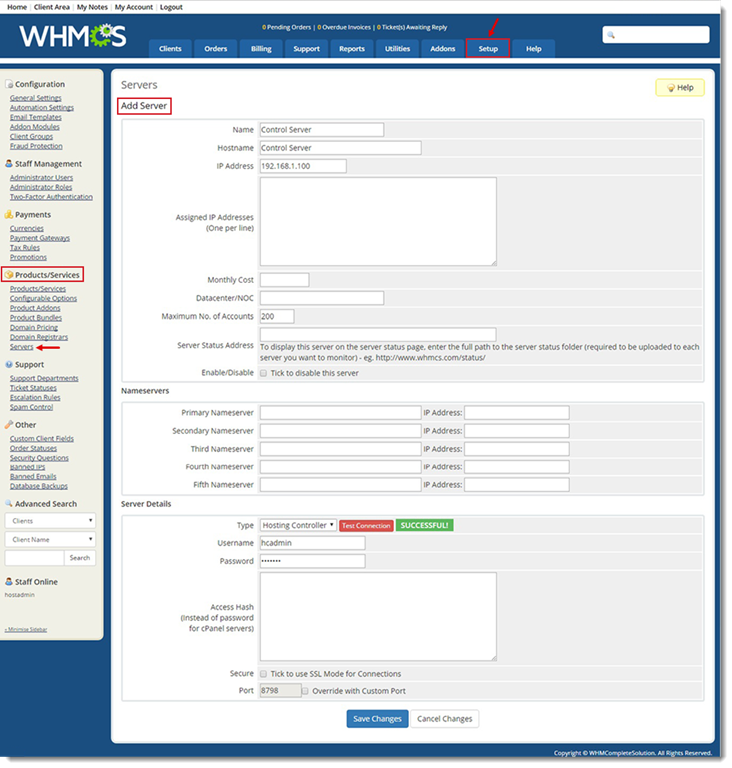
To add a server, go to Setup >> Products / Services >> Servers and then add HC10 Control Server to WMHCS.
2) Adding a Product
To add a product, go to Setup >> Product / Services >> Product / Services. Specify a service plan under Module Settings.
Products are HC10 Service Plans.
A product is added in three steps such as:
- Creating a New Product
Create Product from Products / Services >> Product / Services >> Create a New Product.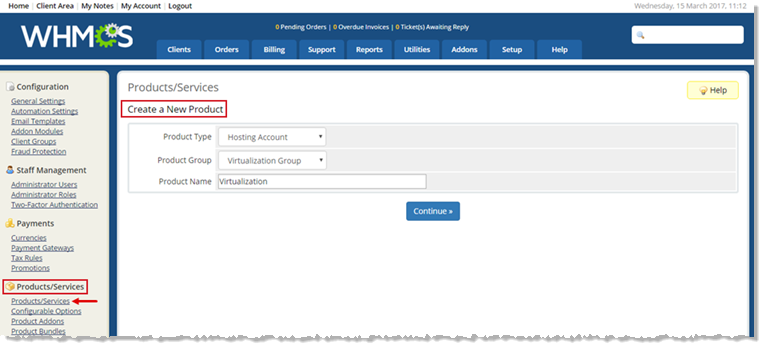
- Specifying Module Settings
In the next step, under Module Settings, specify Module Name by selecting Hosting Controller.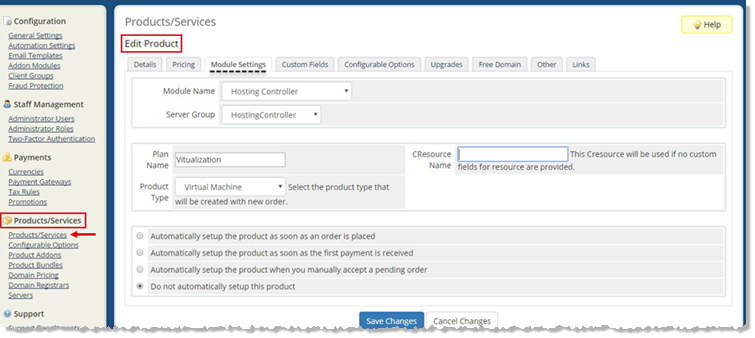
If Hosting Controller is not in the list then refer to step 2 and step 3 in Preparing WHMCS for HC10 section. - Adding Custom Fields
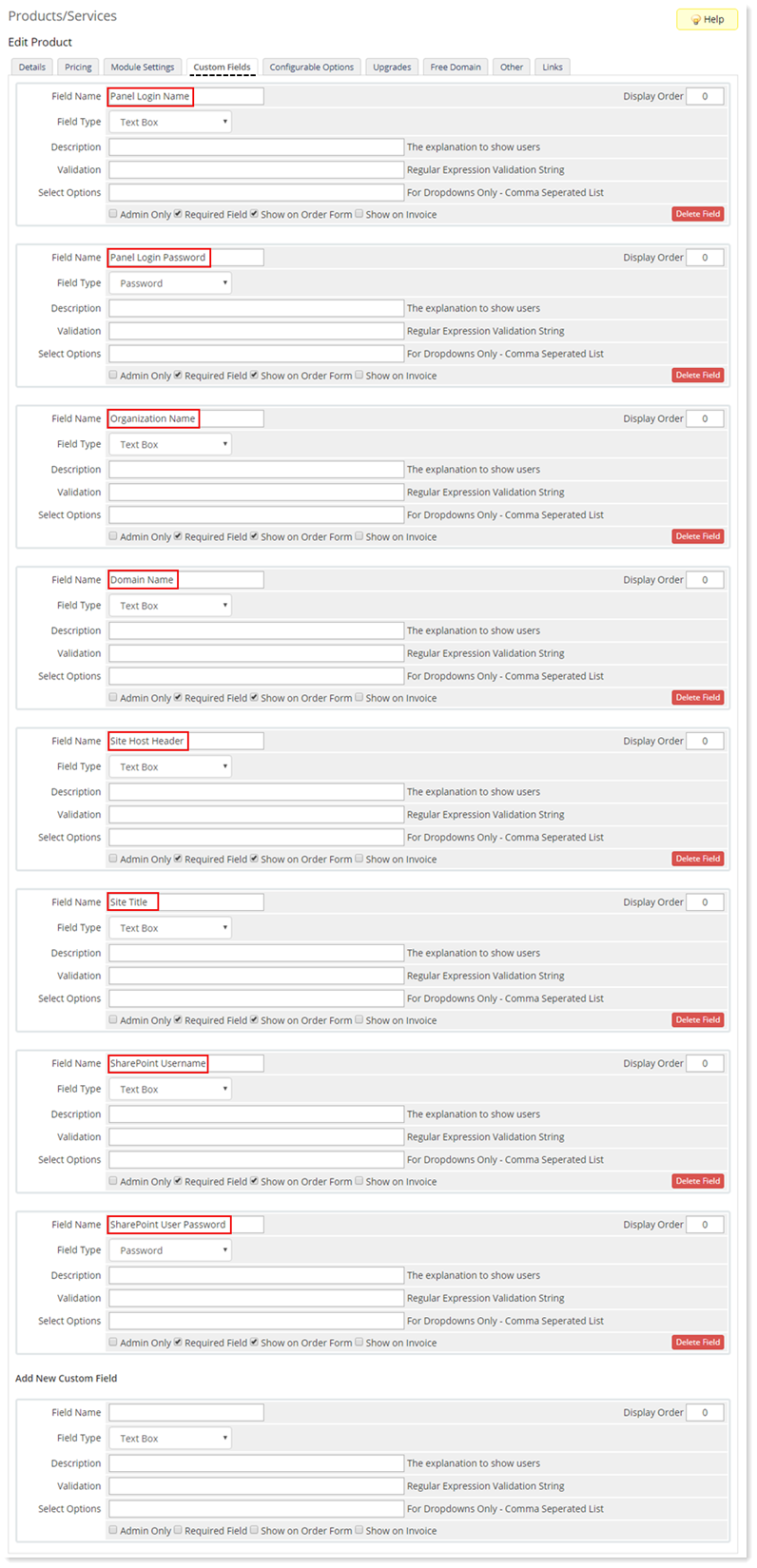
Adding Custom Fields is the last step in adding a product. Three types of Custom Fields in WHMCS are Client, Product and Support respectively.
For HC10, you only need to associate Product Custom Fields with a product. For example, for Exchange you may create Custom Fields related to Exchange product. Product Custom Fields related to each Product (Exchange, Virtualization etc. ) are:
Virtualization Custom Fields with Composite Resource: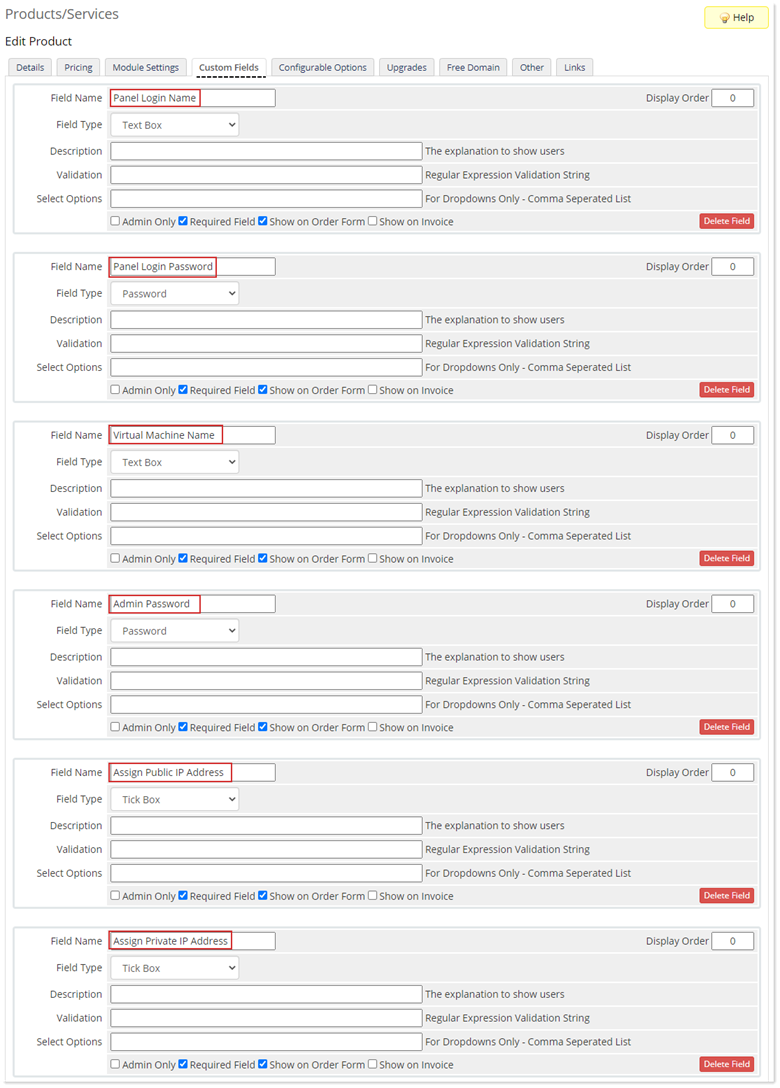
Virtualization Custom Fields without Composite Resource: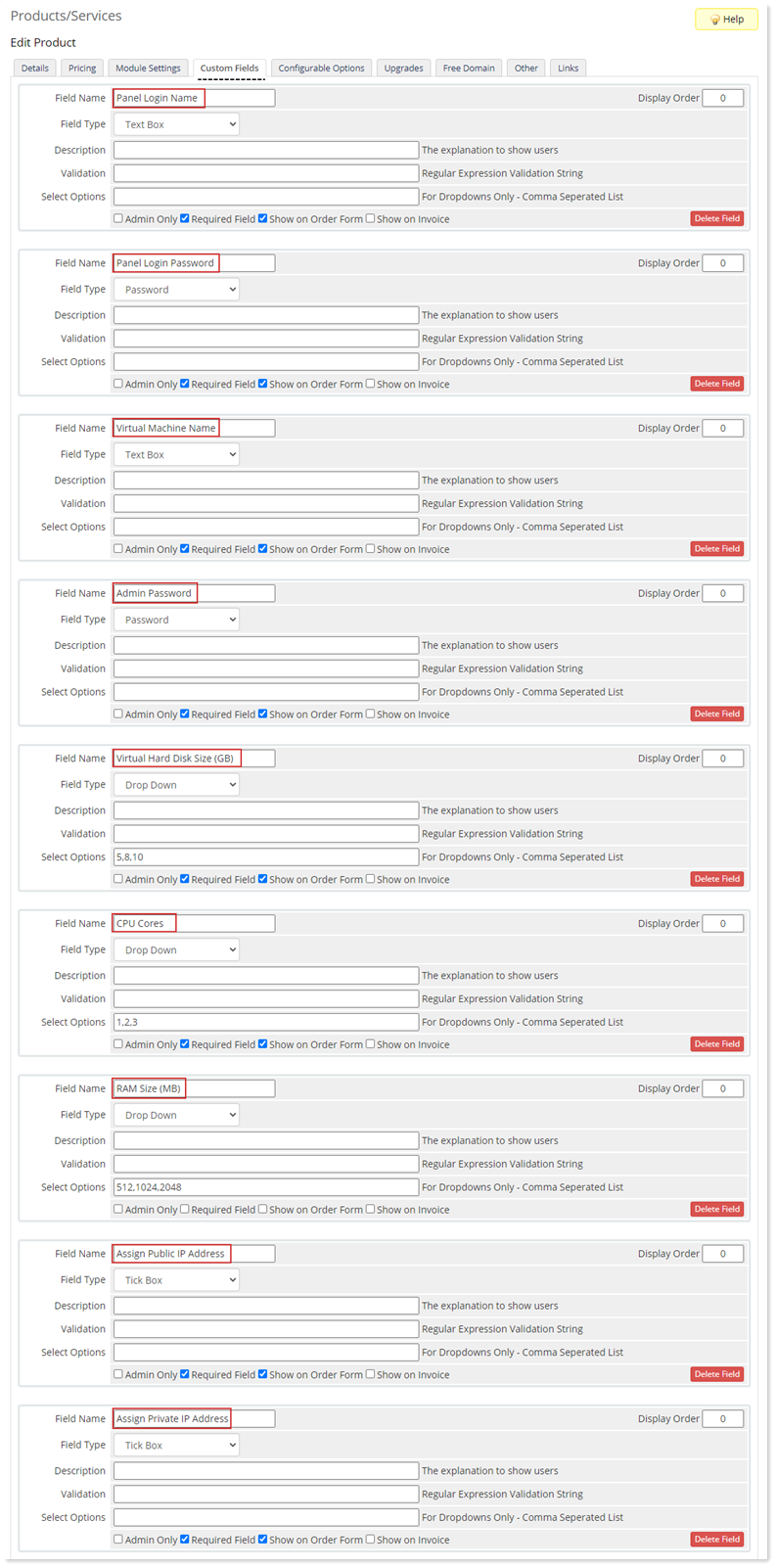
Exchange Custom Fields: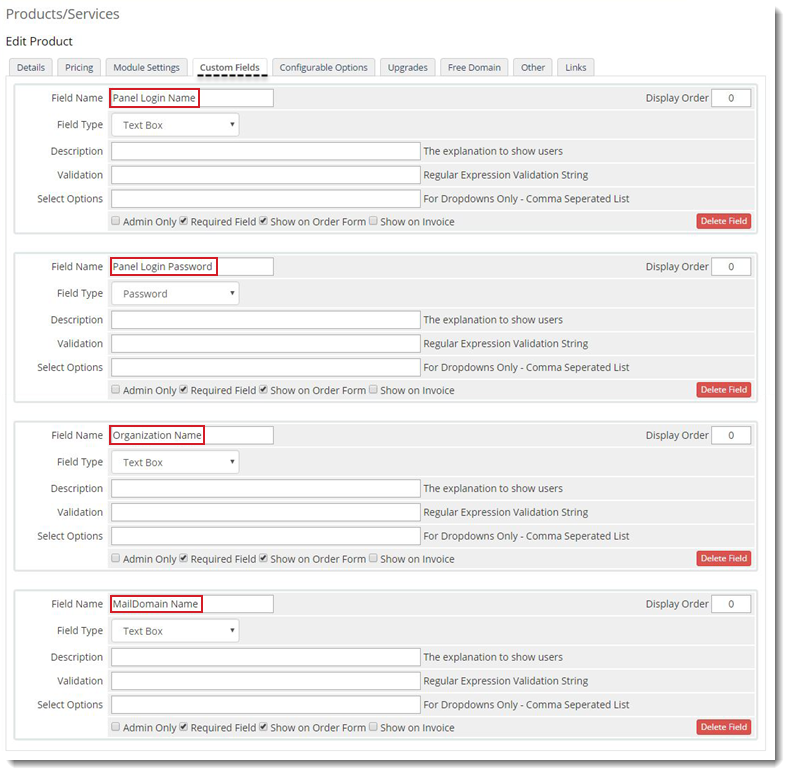
Panel Login Name and Panel Login Password are fields common across all Products. For WHMCS version 8, customer is required to keep the Field Type of Panel Login Password as Text Box . Otherwise the customer would not be able to login to its interfaceSkype for Business Custom Fields:
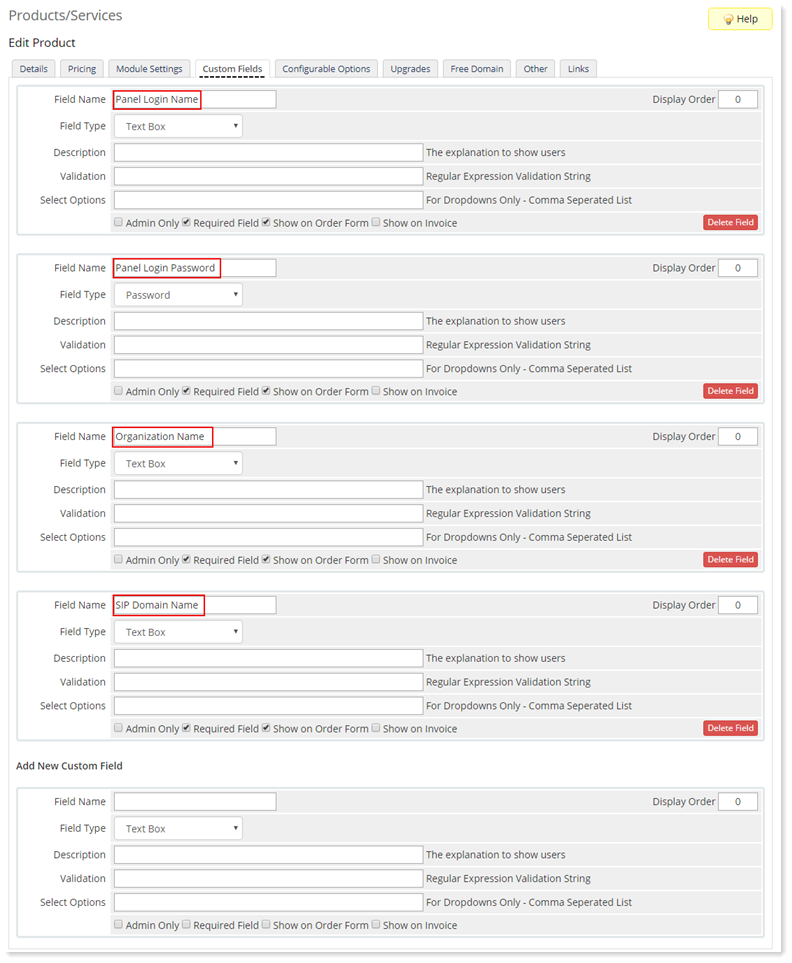
SharePoint Custom Fields:
4) Adding a WHMCS Client
To add a WHMCS Client, go to Clients >> Add New Client. 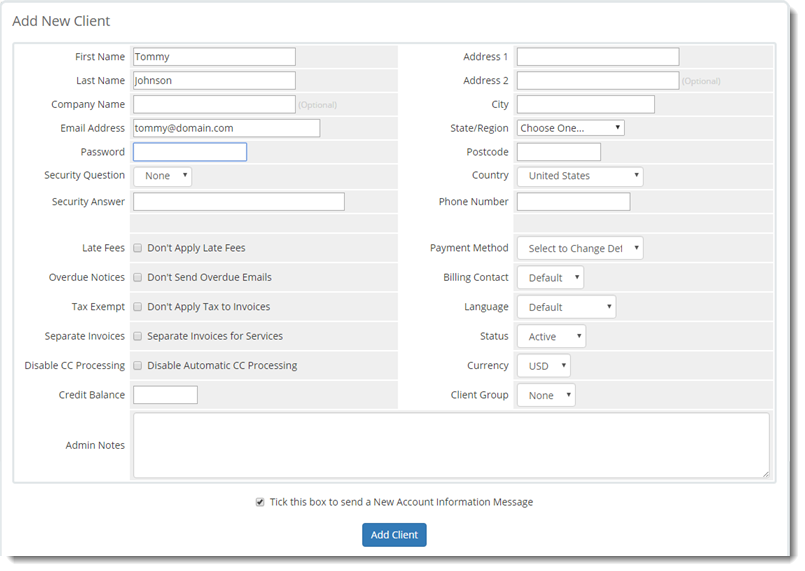
5) Adding a New Order
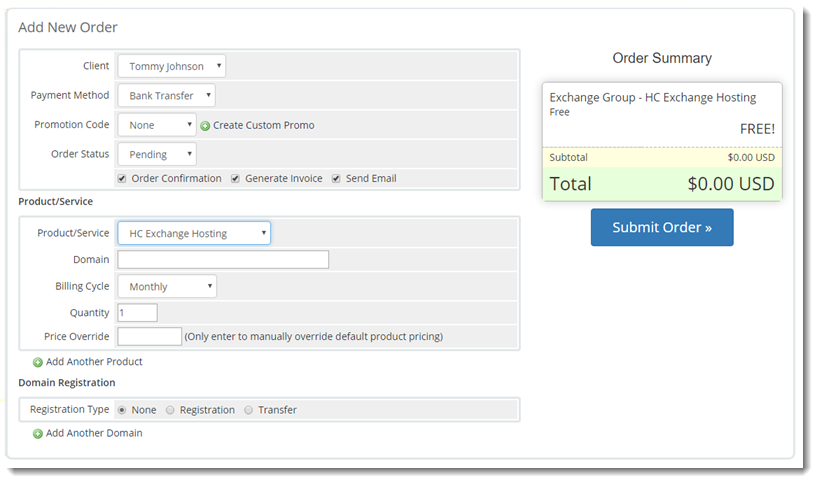
To add a new order for clients, go to Orders>> Add New Order.
6) Creating a Service
To create a service (Exchange Organization, VM or Website), follow the steps below:
- Go to Orders >> Pending Orders.
- Select the pending order and change its status from Pending to Active.
- Finally, click Create to add clients in HC10 and provision service such as VM, Website and so on in HC10.