
| Product Documentation
Hybrid Control Panel (v10)
Creating a public folder
Public folders give Outlook users shared access to folders. Selected group of users can be assigned permissions to a folder or the folder can be made available to everyone in Exchange. Exchange administrators can control user access by assigning users, privileges to use public folders.
Public folders are defined at the organization level. Everyone in the organization can be assigned access to the public folders.
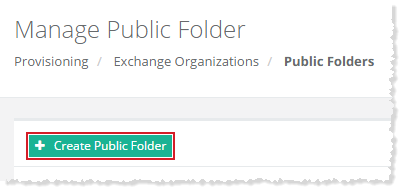
To create a public folder, click + Create Public Folder and specify required information to proceed.
Fields marked in red are required fields and cannot be left empty.
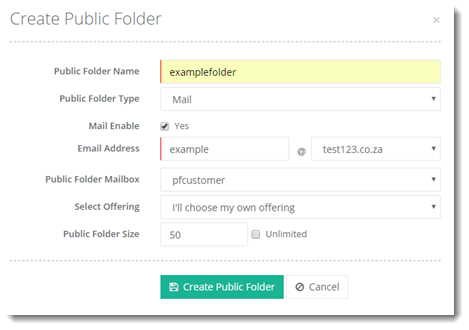
- Public Folder Type: There can be four different types of public folders namely:
- Contact
- Calendar
- Task
- Mail Enable: Public folders can be mail enabled. When a public folder is mail enabled, a SMTP address is assigned to it and emails can be received directly into it. Users can even send emails on behalf of mail-enabled public folders. Mail enabling a public folder activates additional settings for the folder such as mail quotas.
- Email Address: This specifies the SMTP address for the mail enabled public folder. For folders that are not mail enabled, there will be no SMTP address.
- Public Folder Mailbox: Before creating a public folder, a public folder mailbox must first be created. Public folder mailboxes store the hierarchy information plus the content for public folders. The first public folder mailbox in the organization is the primary hierarchy mailbox and contains the only writable copy of the hierarchy. Any additional public folder mailboxes are secondary hierarchy mailboxes, containing a read-only copy of the public folder hierarchy.
- Public Folder Size: This specifies the public folder size in MB.
See how you can Create an Exchange Public Folder.