
| Product Documentation
Hybrid Control Panel (v10)
Configuring nopCommerce
What is nopCommerce?
nopCommerce is a universal E-commerce platform fitting every merchant’s needs. Hosting Controller has integrated it to fulfill the needs of online sellers. It powers both corporate and small business sites all over the world, facilitating companies selling digital goods. The platform has everything you need to get started and grow your E-commerce business.
How to install nopCommerce on your business website?
Download this package nopCommerce Web package (no source) from nopCommerce official website. nopCommerce store installation on one’s business website is a simple process explained in detail on nopCommerce installation guide available at this URL: http://docs.nopcommerce.com/display/en/Installation+guide
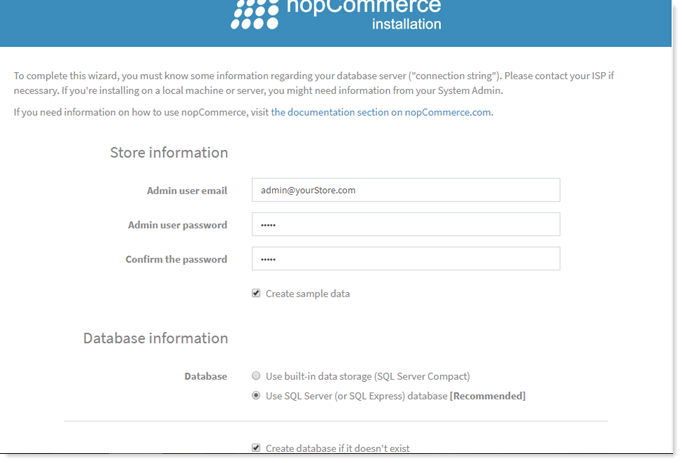
HC Recommended configurations while installing nopCommerce are given in below screenshot:
How to configure nopCommerce with Hosting Controller?
After the installation of nopCommerce on your business website, the next step required will be to configure it with Hosting Controller. For it, you would need to download and place the nopCommerce-HostingController plugin in nopCommerce store website directory at this <Business_Website_HomeDirectory>\Plugins. l
WHERE <Business_Website_HomeDirectory> denotes your business website upon which nopCommerce has been installed.
HC-NopCommerce download link: To download the Hosting Controller plugin for nopCommerce visit this link:
https://www.nopcommerce.com/p/2860/hosting-controller-panel.aspx
HC-NOPCommerce plugin Installation: Stepwise instructions on how to install nopCommerce plugin are given below:
- Sign into nopCommerce admin account.
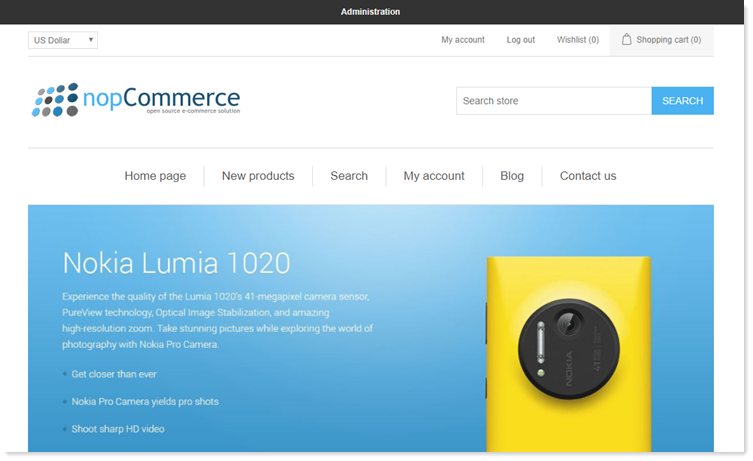
- Navigate to the Administration section of nopCommerce store by clicking on Administration link at the top of the page.
- In the next step, navigate to the path: Configuration >> Plugins >> Local Plugins and on this page search for Group named Hosting Controller. It will list you the Hosting Controller plugin as shown below:
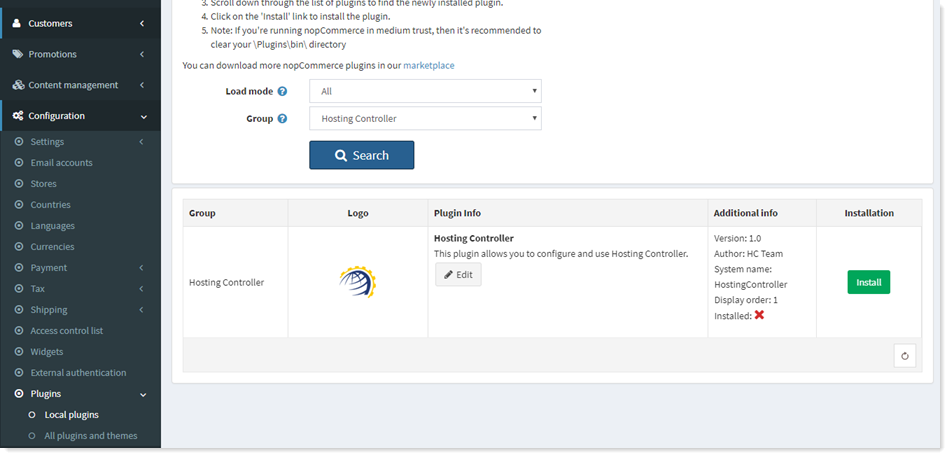
- Click Install showing next to Hosting Controller plugin in order to install HC-NOPCommerce plugin on your nopCommerce website.
- Once nopCommerce is installed then you can configure it with Hosting Controller API by navigating to the menu: Plugins >> Hosting Controller. Provide the relevant details of HC10 control panel and then click on Validate & Save button.
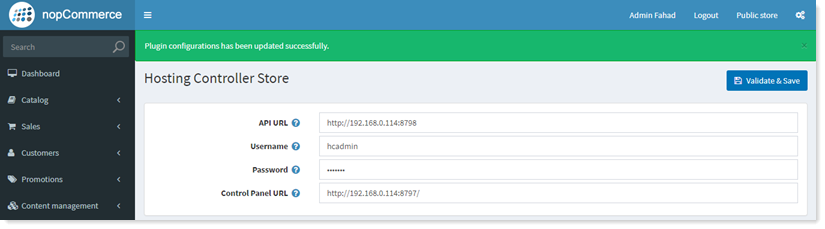
- API URL: This is API URL of HC10 API website. You can get this URL by signing into HC10 panel as Global Admin and then editing Control Server from: Configurations >> Control Server Manager >> Control Servers.
- UserName: Here specify the user name of GlobalAdmin.
- Password: Password of GlobalAdmin
- Control Panel URL: This denotes HC10 control panel URL using which HC portal is accessed across internet.
- In next step you would need to add the desired Service Plans in Hosting Controller control panel which you want to sell via nopCommerce Shopping cart. To add Service Plans in HC please refer to Adding a Service Plan.
You may skip step # 6, if you already have Service Plans added in your HC10 panel. - Click Catalog >> Products >> Add New to add products in nopCommerce.
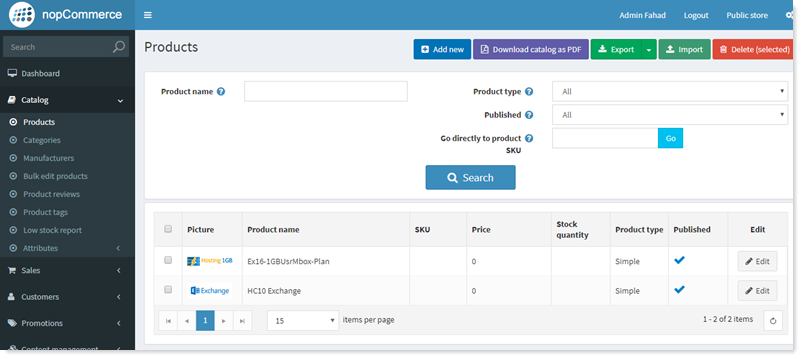
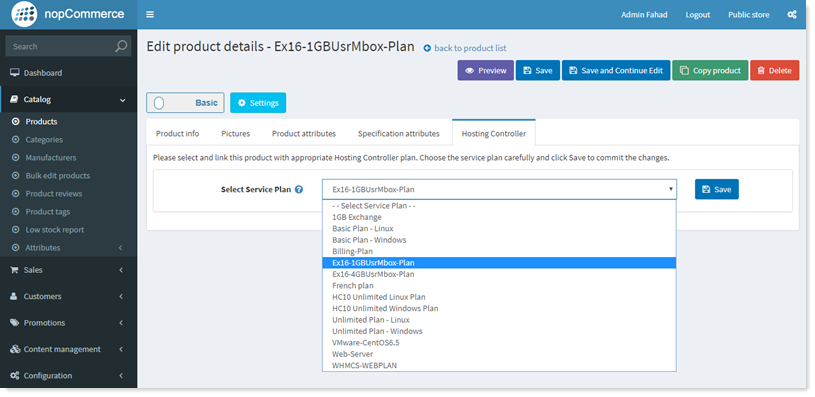
- In next step, link this product added in step # 7 with appropriate Hosting Controller Service Plan created in step # 6 by clicking on Edit showing in front of product at Catalog >> Products page and then click on Hosting Controller tab. Now choose the HC10 Service Plan carefully and click Save map HC10 Service Plan with nopCommerce product.
- Now clients can visit your business website and signup for HC10 products. Once they have signed up then they can easily purchase from your business website enabled with nopCommerce shopping cart.