| Product Documentation
Hybrid Control Panel (v10)
Managing servers backup
rebuildXpress Instant Recovery is a revolutionary tool, an add-on to Hosting Controller that provides rigorous backup and simplified restoration mechanism for Windows and Linux based hosting servers.
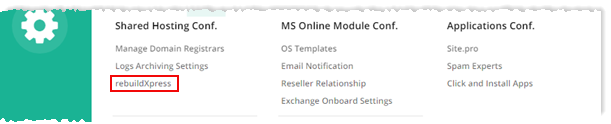
To manage servers backup, from top right corner of your screen, click  and then go to Shared Hosting Configuration >> rebuildXpress.
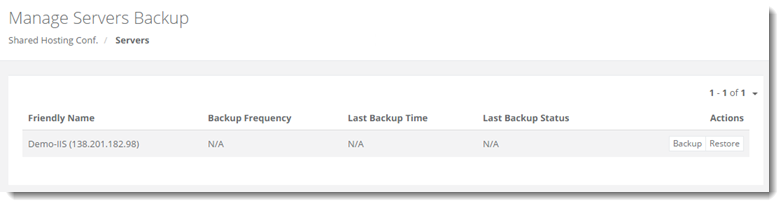
Fields marked in red are required fields and cannot be left empty.
Taking Server Backup
To take backup of the server click Backup under Actions column.
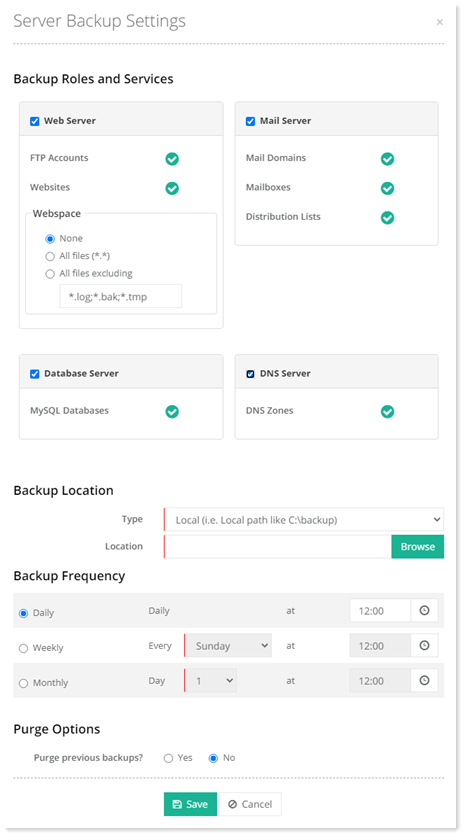
- Backup Roles and Services:
- Web Server: For a webserver rebuildXpress can backup websites, ftp accounts and the webspace.
- Webspace: Webspace can be backedup with three options as:
- None: In this option the webspace is not backedup at all. It is left out during the backup process.
- All files (*.*): This option allows the backup of all files in the webspace.
- All files excluding: This option allows the backup of all files in the webspace except the type of files indicated below e.g. .log, .bak, .tmp etc.
- None: In this option the webspace is not backedup at all. It is left out during the backup process.
- Webspace: Webspace can be backedup with three options as:
- Mail Server: For a mail server rebuildXpress can backup non-Exchange mail domains, mailboxes and distribution lists e.g. SmarterMail mail domains.
- Database Server: For a database server rebuildXpress can backup SQL Server and MySQL databases. In case of Linux rebuildXpress will only backup MySQL databases.
- DNS Server: For a DNS server rebuildXpress can backup DNS zones.
- Web Server: For a webserver rebuildXpress can backup websites, ftp accounts and the webspace.
- Backup Location:
- Type: It allows to select the type of location to store backup.
- Local (i.e. Local Path like C:\backup) - It allows the storage of backup on local drive e.g. C:\\backup.
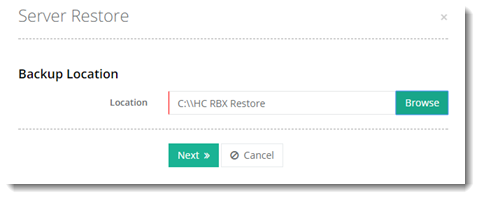
- Location: This indicates the location of the local drive. Click Browse to specify the path of the local drive.
- Location: This indicates the location of the local drive. Click Browse to specify the path of the local drive.
- UNC (i.e. Network Path like \\192.156.2.1\backup) - It allows the storage of backup on a remote server in the same network.
- Location: Type Universal Naming Convention (UNC) path e.g. \\servername\backup.
- Username: Type a Login user. This login account should have permissions to write on the UNC path.
- Password: Type password of the user.
- Check Connectivity: Click to verify connection settings.
- Location: Type Universal Naming Convention (UNC) path e.g. \\servername\backup.
- FTP - It allows the FTP of backup data to a remote server.
- FTP Server: Type IP for the FTP server.
- FTP Port: Type FTP port. It is usually 21.
- Username: Type username.
- Password: Type password of the user.
- Check Connectivity: Click to verify connection settings.
- FTP Server: Type IP for the FTP server.
- Local (i.e. Local Path like C:\backup) - It allows the storage of backup on local drive e.g. C:\\backup.
- Type: It allows to select the type of location to store backup.
- Backup Frequency: There should be an indicator of how often the backup occurs. RBX allows scheduling of backups. Backups can be scheduled Daily, Weekly or Monthly.
- Daily: Backups can be scheduled daily at a convenient time interval.
- Weekly: Backups can be scheduled weekly on a specified day and time.
- Monthly: Backups can be scheduled monthly on a specified day of the month.
- Daily: Backups can be scheduled daily at a convenient time interval.
- Purge Options:
- Purge previous backups: Sometimes it becomes absolutely necessary to remove older backups to clear space for latest backups. rebuildXpress allows you to purge previous backups that have exceeded their retention settings. Your data retention policy can be aligned to meet the legal and business needs of your organization. You can either decide to purge your previous backups or leave them as they are.
- Purge after: If you decide to purge your previous backups, you can select the number of days after which they should be removed e.g. after 14 days. rebuildXpress will automatically remove your backups after the expiry of these days.
- Purge previous backups: Sometimes it becomes absolutely necessary to remove older backups to clear space for latest backups. rebuildXpress allows you to purge previous backups that have exceeded their retention settings. Your data retention policy can be aligned to meet the legal and business needs of your organization. You can either decide to purge your previous backups or leave them as they are.
Restoring a Server
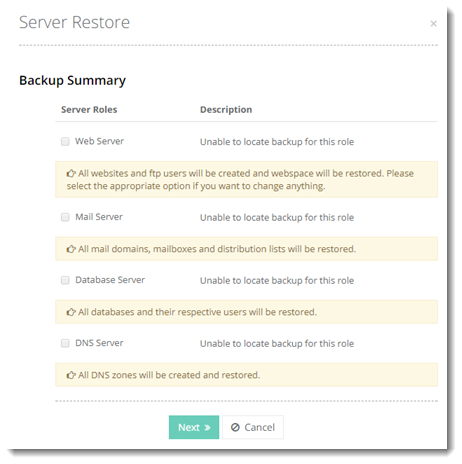
To restore server settings, click Restore under Actions column.