| Product Documentation
Hybrid Control Panel (v10)
Managing Private IP Addresses
HC allows you to assign private IP addresses to virtual machines. You may define a range of private IPs in HC. When creating a virtual machine, HC will pick an IP from this available range and assign it to the virtual machine. First IPs in the range would be assigned first.
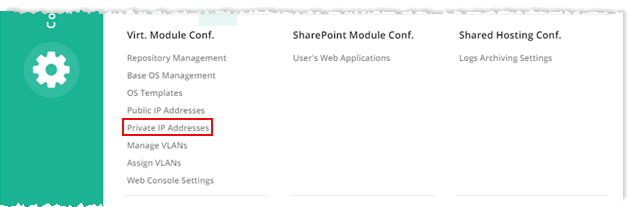
To manage private IP addresses, from top right corner of your screen, click  and then go to Virtual Module Configuration >> Private IP Addresses.
|
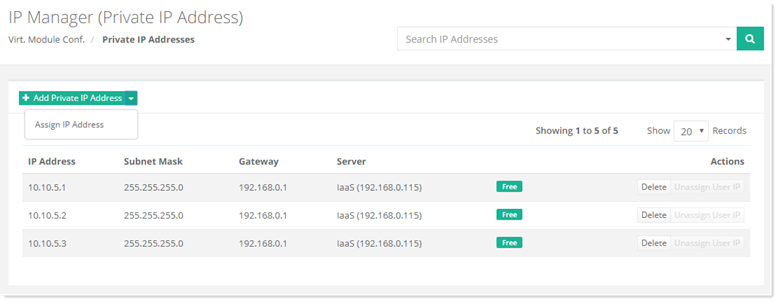
IP Manager (Private IP Addresses) page shows all the available private IPs and additional information as:
|
Adding a Private IP Address
To add a private IP address, click +Add Private IP Address and specify required information:
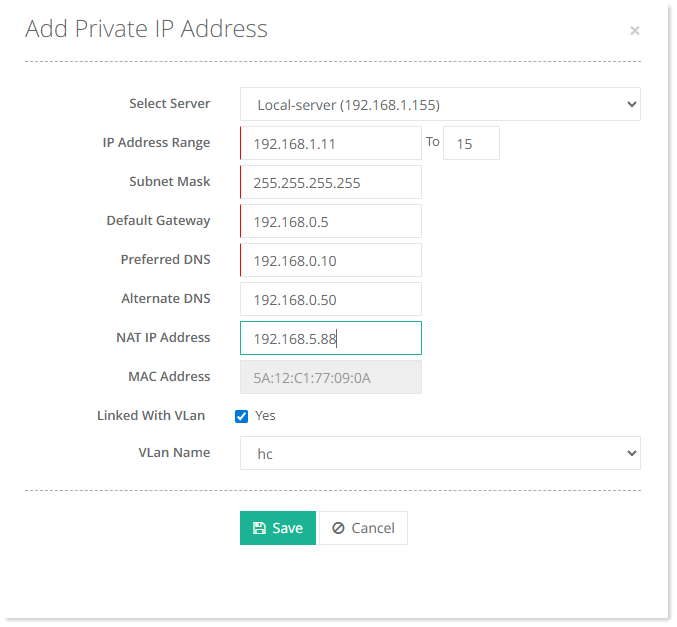
- Select Server: This is the Hyper-V host to which the IPs are to be allocated.
- MAC Address: Static MAC address can be associated to a Private IP address. Whenever the IP will be assigned to a virtual machine, the MAC address will be assigned along.
HC supports a one-to-one mapping for IP to MAC. A single IP address can be mapped to a single MAC at a time. Range of IPs cannot be mapped to a range of MACs. - Linked With VLAN: When enabled, this associates a private IP with the selected VLAN.
- VLAN Name: Select the VLAN from the dropdown list to which the private IP will be assigned.
Assigning a Private IP Address
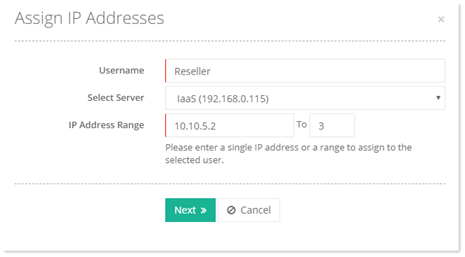
Private IPs can be reserved for specific users. These IPs can only be assigned to virtual machines under those specific users. No other user would be able to utilize the reserved IP or IP range. Owner can reserve IPs only for users lying directly under its user hierarchy. For instance an admin can reserve IPs only for Resellers and Clients lying directly under him. It cannot reserve IPs for other users lying under one of its Resellers.
To assign a private IP address, click Assign Private IP Address and specify required information:
Deleting a Private IP Address
To delete a private IP address, under Actions column click Delete.