| Product Documentation
Hybrid Control Panel (v10)
Creating master virtual machine
A master virtual machine is created to be used as OS Templates.
To create a master virtual machine
- Launch Hyper-V Manager.
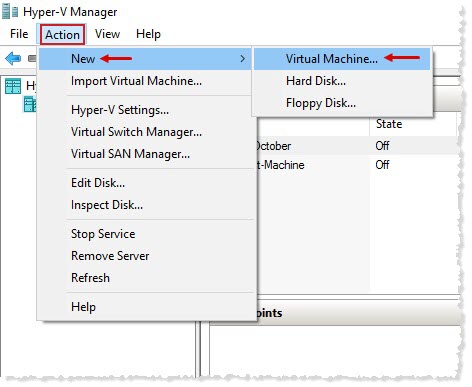
To launch Hyper-V Manager, click Start >> Windows Administrative Tools >> Hyper-V Manager. - On the menu bar, click Action >> View >> Virtual Machine to start a virtual machine creation wizard.
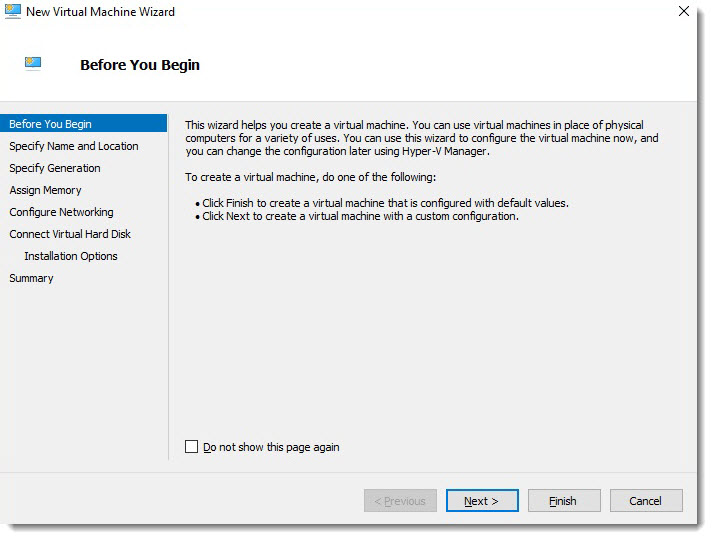
Click Next to proceed. - Specify Name and Location of the virtual machine.
For your convenience, specify meaningful name and easy path structure for the virtual machine.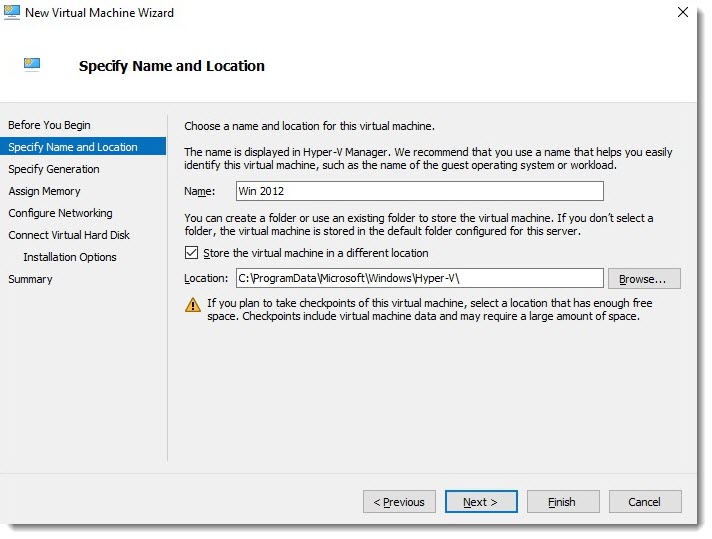
Click Next to proceed. - Select generation for the virtual machine.
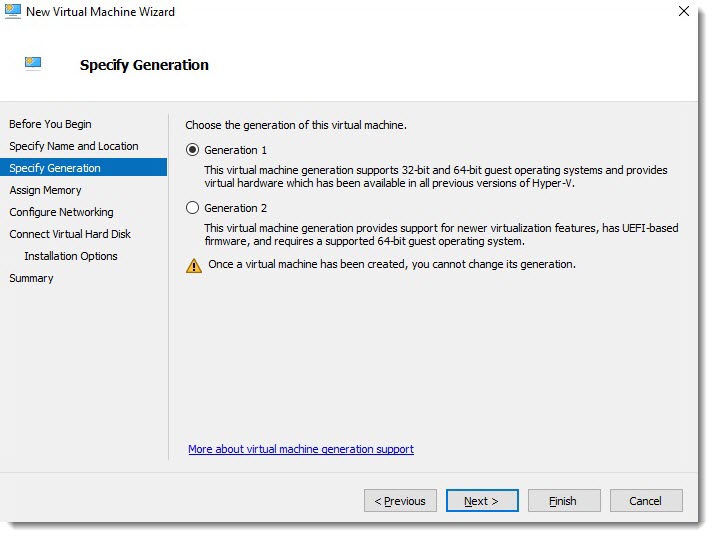
Generation 1:Generation 1 virtual machines support legacy drivers and uses Hyper-V BIOS-based architecture.Generation determines the virtual hardware and functionality that is presented to the virtual machine. In previous versions of Hyper-V, there was only one generation of virtual machine but starting with Windows Server 2012 R2, you can create two types of virtual machines such as Generation 1 and Generation 2.
Generation 2: Generation 2 virtual machines are Microsoft Hyper-V virtual servers that use the second generation of virtual hardware and supports Unified Extensible Firmware Interface (UEFI) firmware instead of BIOS-based firmware. The majority of legacy devices have also been removed from generation 2 virtual machines and it requires 64-bit guest operating system.
Click Next to proceed. - Type Startup memory for the virtual machine.
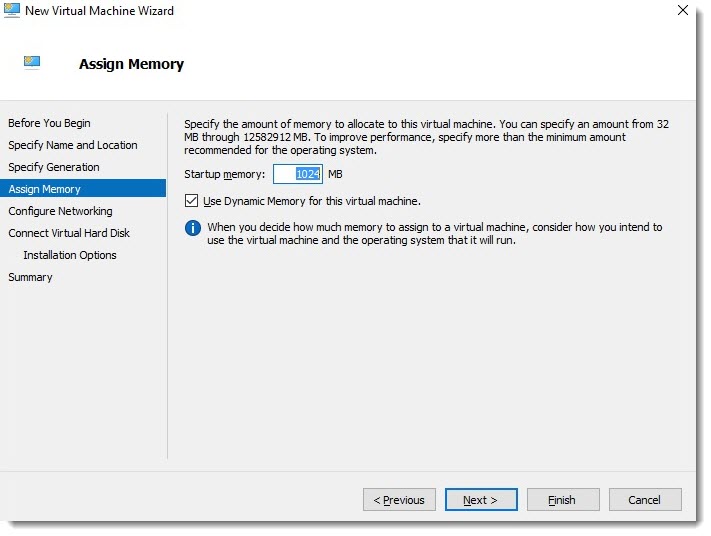
Click Next to proceed. - Select the virtual switch from the drop-down list box.
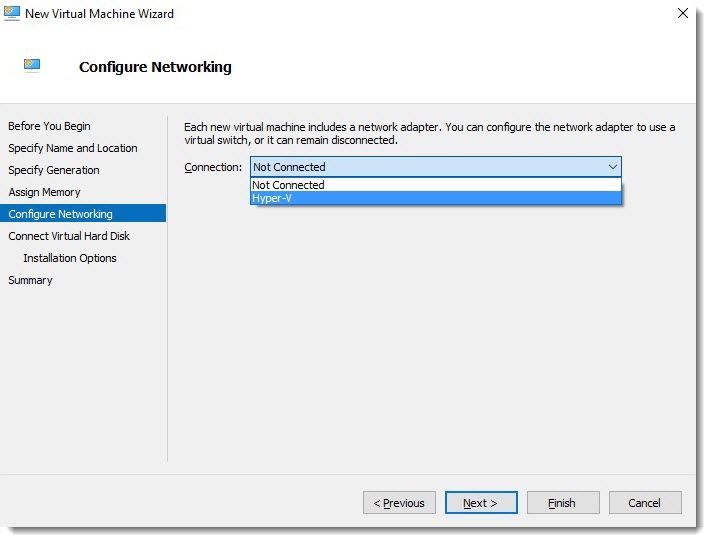
Click Next to proceed. - Click Create a virtual hard disk and specify Name, Location and Size for the hard disk.
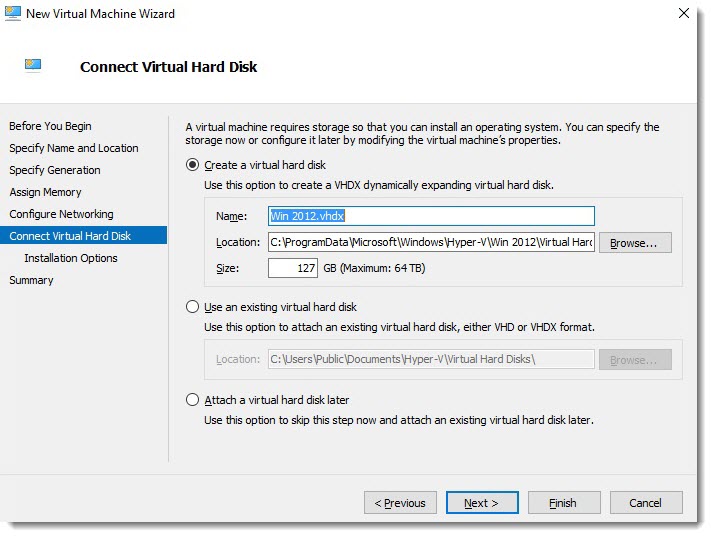
Click Next to proceed. - Select installation options as required for virtual machine creation.
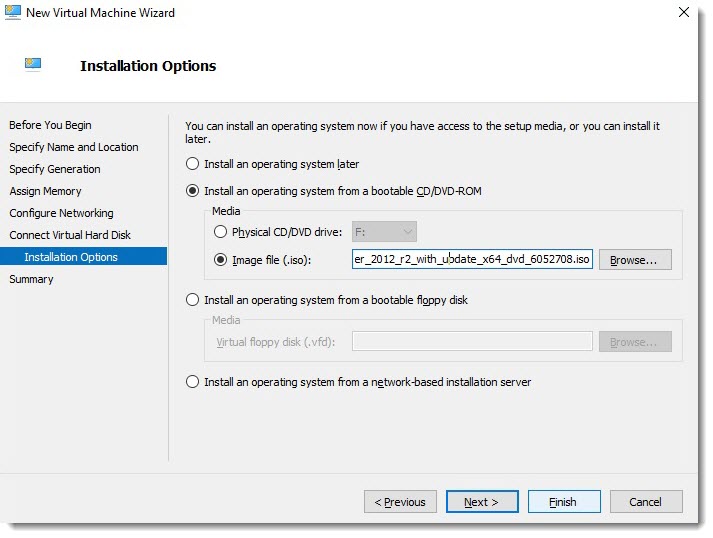
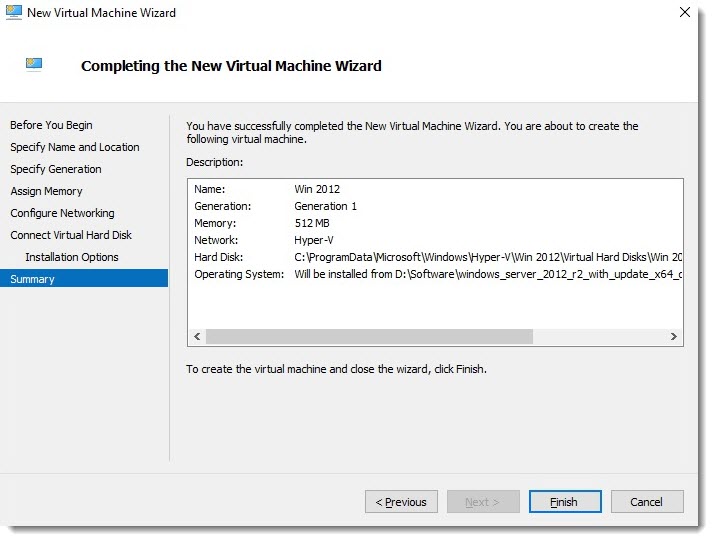
Click Next to proceed. - Review the installation summary and click Finish to complete the creation of master virtual machine.