
| Product Documentation
Hybrid Control Panel (v10)
Creating a distribution list
A distribution list is a group of email addresses. It provides an easy way to send email messages to a group of people at once.
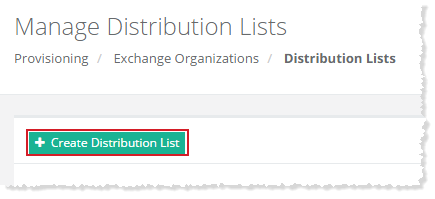
To create a distribution list, click + Create Distribution List and specify required information to proceed.
Create Distribution Group
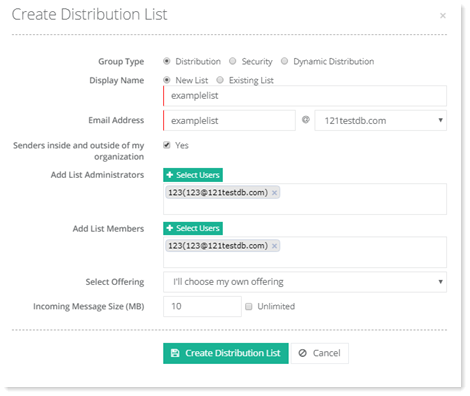
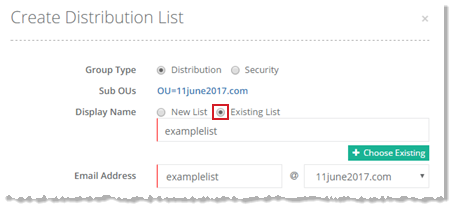
To create a distribution group, select Group Type as Distribution.
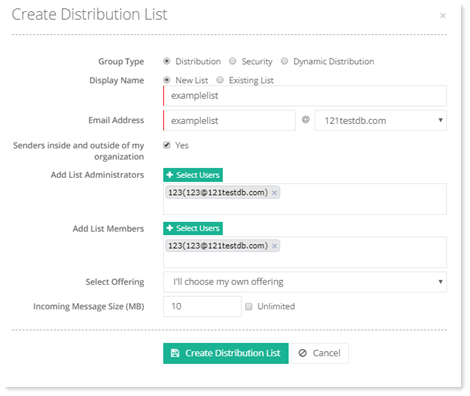
- Group Type
- Distribution Group: It is a mail-enabled distribution group that can be used only to distribute messages.
- Display Name: A new distribution list can be created or an existing security group can be mail-enabled.
- New List: It is display name and email address of the new distribution list.
- Existing List: It is display name and email address of an existing security group. This option will mail-enable an existing security group. If the security group is already mail-enabled HC will let it remain as it is.
- Senders inside and outside of my organization: This option in Exchange allows senders outside of your Exchange organization to send messages to the distribution group as well as inside users.
- Add List Administrators: The person who creates a group is its owner. A distribution group can have multiple owners. You may select owners here. All groups must have at least one owner. Owners don't have to be members of the group.
- Add List Members: It allows you to select group members.
- Select Offering: It allows you to select your offerings.
- Incoming Message Size (MB): It allows you to specify message size for your incoming messages. The default size is 10 MB.
A new distribution list can be created or an existing security group can be mail-enabled.
To create a new distribution list, select New List and specify required information.
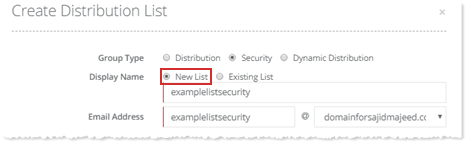
To mail-enable an existing group, select Existing List and specify required information.
Create Security Group
To create a security group, select Group Type as Security.
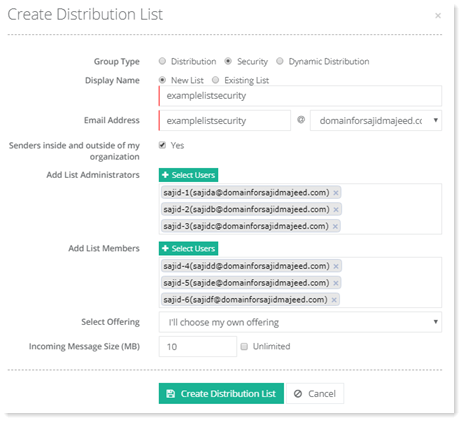
- Group Type
- Security: It is a mail-enabled group that can be used to distribute messages as well as to grant access permissions to resources in Active Directory.
- Display Name: A new mail-enabled security group can be created or an existing security group can be mail-enabled.
- New List: It is display name and email address of the new security group.
- Existing List: It is display name and email address of an existing security group. This option will mail-enable an existing security group. If the Security Group is already mail-enabled HC will let it remain as it is.
- Senders inside and outside of my organization: This option in Exchange allows senders outside of your Exchange organization to send messages to the distribution group as well as inside users.
- Add List Administrators: The person who creates a group is its owner. A distribution group can have multiple owners. You may select owners here. All groups must have at least one owner. Owners don't have to be members of the group.
- Add List Members: It allows you to select group members.
- Select Offering: It allows you to select your offerings.
- Incoming Message Size (MB): It allows you to specify message size for your incoming messages.
Create Dynamic Distribution Group
To create a dynamic distribution group, select Group Type as Dynamic Distribution.
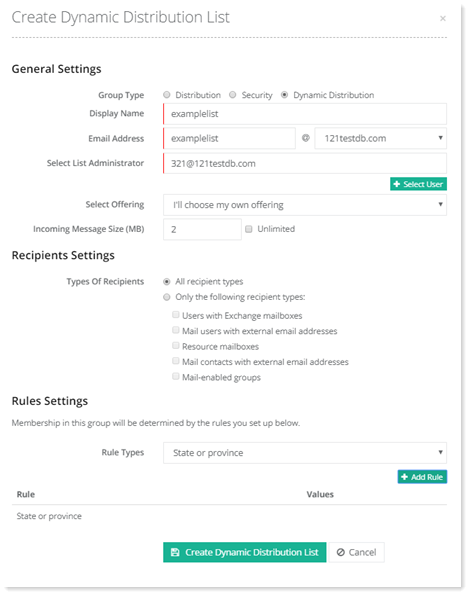
- Group Type
- Dynamic Distribution: It is a group whose membership is based on specific recipient filters rather than a defined set of recipients. The recipient list is based on the filters and conditions that you define. Email message sent to a dynamic distribution group is delivered to all recipients in the organization that match the criteria defined for that group.
- Display Name: Display name of dynamic distribution group.
- Email Address: Email address of the dynamic distribution group.
- Select List Administrators: The person who creates a group is its owner. A distribution group can have multiple owners. You may select owners here. All groups must have at least one owner. Owners don't have to be members of the group.
Select Offering: It allows you to select your offerings. - Incoming Message Size (MB): It allows you to specify message size for your incoming messages.
- Recipients Settings: These are the settings that specify the types of recipients for the group.
- Types of recipients
-
All recipient types: Messages that meet the defined criteria are sent to all recipient types.
-
Only the following recipient types: Messages that meet the defined criteria are sent to one or more of the following recipient types:
- Users with Exchange mailboxes: Select this option if you want to include users that have Exchange mailboxes.
- Mail users with external email addresses: Select this option if you want to include users that have user domain accounts in Active Directory, but use email accounts that are external to the organization. This enables them to be included in the global address list (GAL) and added to distribution lists.
- Resource mailboxes: Select this option if you want to include Exchange resource mailboxes.
- Mail contacts with external email addresses: Select this option if you want to include mail contacts that don't have user domain accounts in Active Directory, but their external email addresses are available in the GAL.
- Mail-enabled groups: Select this option if you want to include security groups or distribution groups that have been mail-enabled.
-
- Types of recipients
- Rules Settings: This setting defines the criteria for membership in the group. You have to select one of the following recipient attributes from the drop-down list and provide a value. If the value for the selected attribute matches that value you define, the recipient receives a message sent to the dynamic distribution group.
- Rule Types: