
| Product Documentation
Hybrid Control Panel (v10)
Post Installation Steps for Hyper-V
Once HC10 is successfully installed on your systems, there are certain configurations needed in the panel. The post installation steps for Hyper-V are as follows:
Login
Step 1 is login. Specify user credentials (username and password) to login.
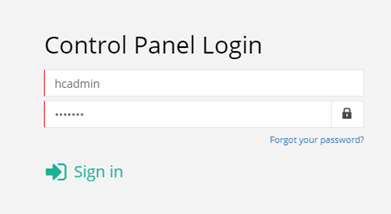
For details, see Login Screen.
Cluster Settings
Step 2 is configuring the cluster. Cluster Settings provide an easy way to enable/disable services globally. Under Server Manager, click Cluster Settings to configure Hyper-V in the cluster.
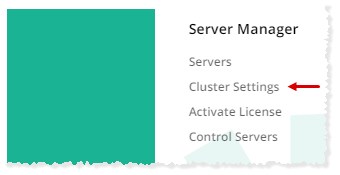
To learn how to enable Hyper-V in cluster settings, see Managing cluster settings.
Adding a Hyper-V Server
Step 3 is adding a Hyper-V host. Under Server Manager, click Servers to proceed.
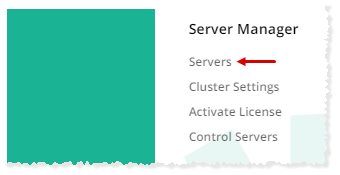
To learn how to add a Hyper-V server, see Adding an IaaS server.
License Activation
Step 4 is activating license. Under Server Manager, click Activate License to activate your panel.
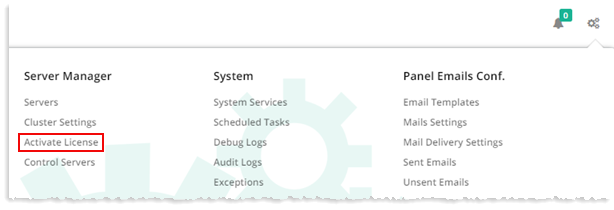
To learn how to activate license, see Activating license.
Adding OS Template
Step 5 is adding an OS template. Navigate to Virtual Module Configuration >> OS Templates.
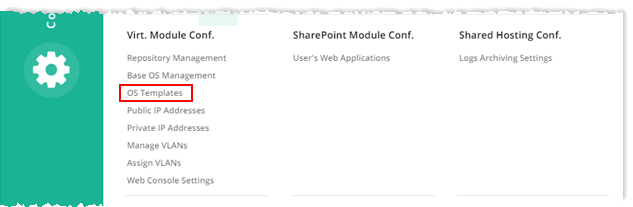
To learn how to add an OS template, see Managing OS templates.
Adding Public IP Addresses
Step 6 is adding public IP addresses. Navigate to Virtual Module Configuration >> Public IP Addresses.
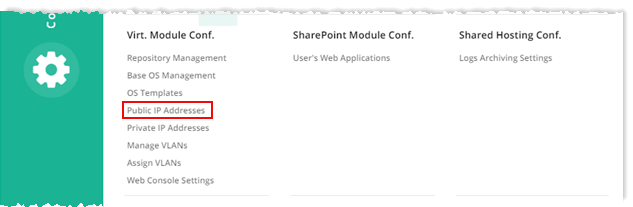
To learn how to add public IP addresses, see Managing public IP addresses.
Creating Virtual Machine
Step 7 and the final step is creating a virtual machine. Navigate to Provisioning >> Virtual Machines.
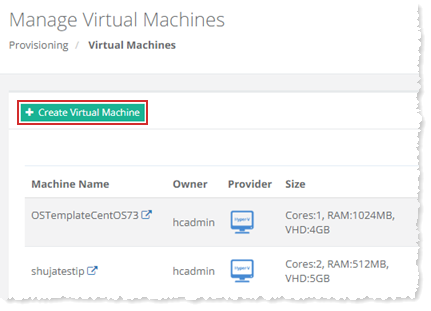
To learn how to create a virtual machine, see Creating a virtual machine.