
| Product Documentation
Hybrid Control Panel (v10)
Adding a RDS Server
Prior to add a RDS server, make sure you have enabled the server roles under Cluster Settings. If you have not configured it yet, please configure it now to proceed further.
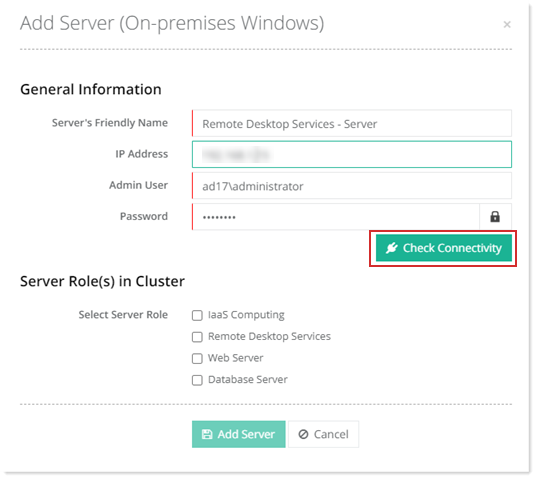
To add a RDS server, specify General Information and click Check Connectivity. Once you are connected successfully, only then you can add a RDS server.
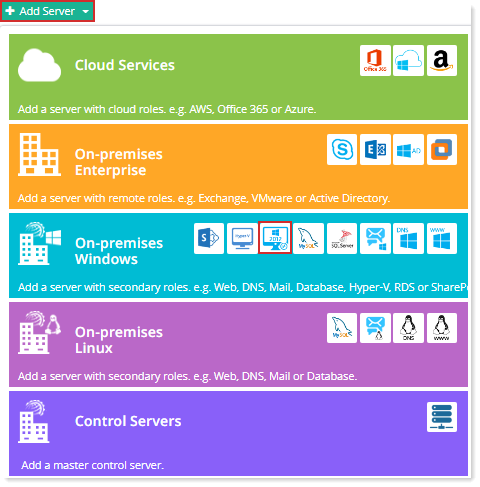
Fields marked in red are required fields and cannot be left empty.
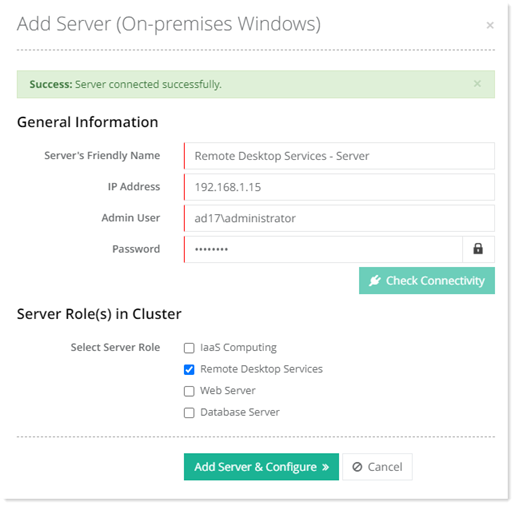
Click Add Server & Configure. Specify required information for RDS Server.
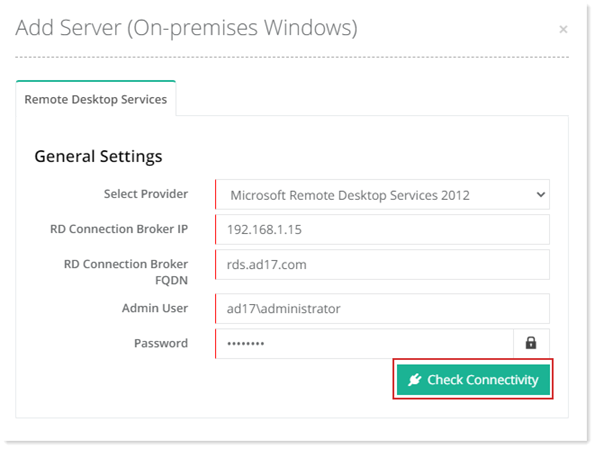
- Select Provider: Select provider from the list. The provider can be Remote Desktop Services 2012, 2016 or 2019.
- RD Connection Broker IP: This is the IP of the RD Session Host server on which the RD Connection Broker role is enabled.
- RD Connection Broker FQDN: This is the FQDN of the RD Session Host server on which the RD Connection Broker role is enabled.
- Admin User: Type username of the RDS server administrator.
- Password: Type password for the administrator.
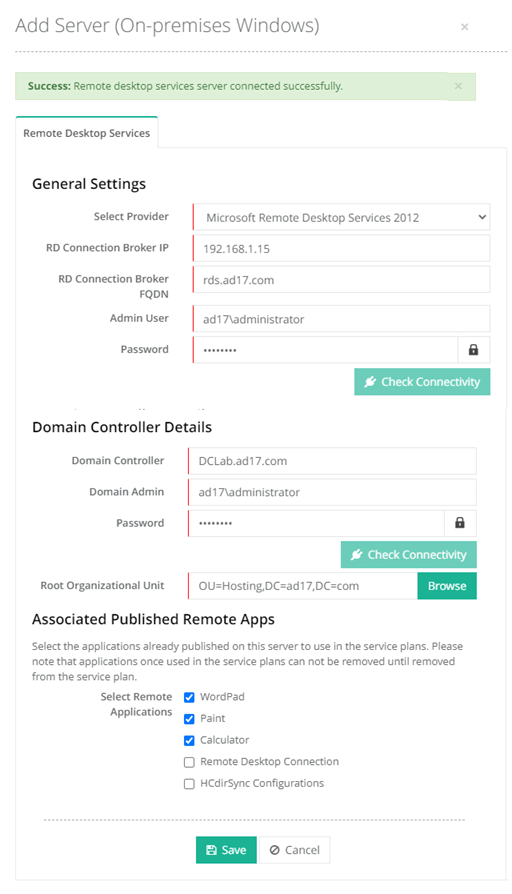
Click Save to add a RDS server.